In a grocery store or minimarket, your money sits on the shelf. Out-of-stock items send customers next door; overstocked items are idle capital. That is why grocery store stock management is not paperwork, it is cash flow. This article shows how to build tidy stock habits with Bakasir: low-stock alerts, stock counts, fixing differences, and transfers between outlets.
Start with correct opening stock
Every stock control rests on the starting numbers. When you add a product under Catalog → Product, fill in Opening Stock from today's shelf count, and enter the cost so profit reports are right. For hundreds of items at once, use Catalog → Import Products with a CSV that has columns such as name, price, cost, opening_stock and stock_alert. If you are moving from an older POS app, see the data migration guide.
After that you never retype stock: sales reduce it, purchases add to it, and returns restore it, per outlet.
Stock management basics: set a low-stock threshold per product
Every product has a Stock Alert field. When stock reaches that number, the product appears in the low-stock list. A practical pattern:
- Fast movers (rice, cooking oil, sugar, cigarettes, bottled water): a threshold equal to two or three days of sales.
- Medium movers: a threshold equal to one week.
- Slow movers: a low threshold, so capital is not tied up.
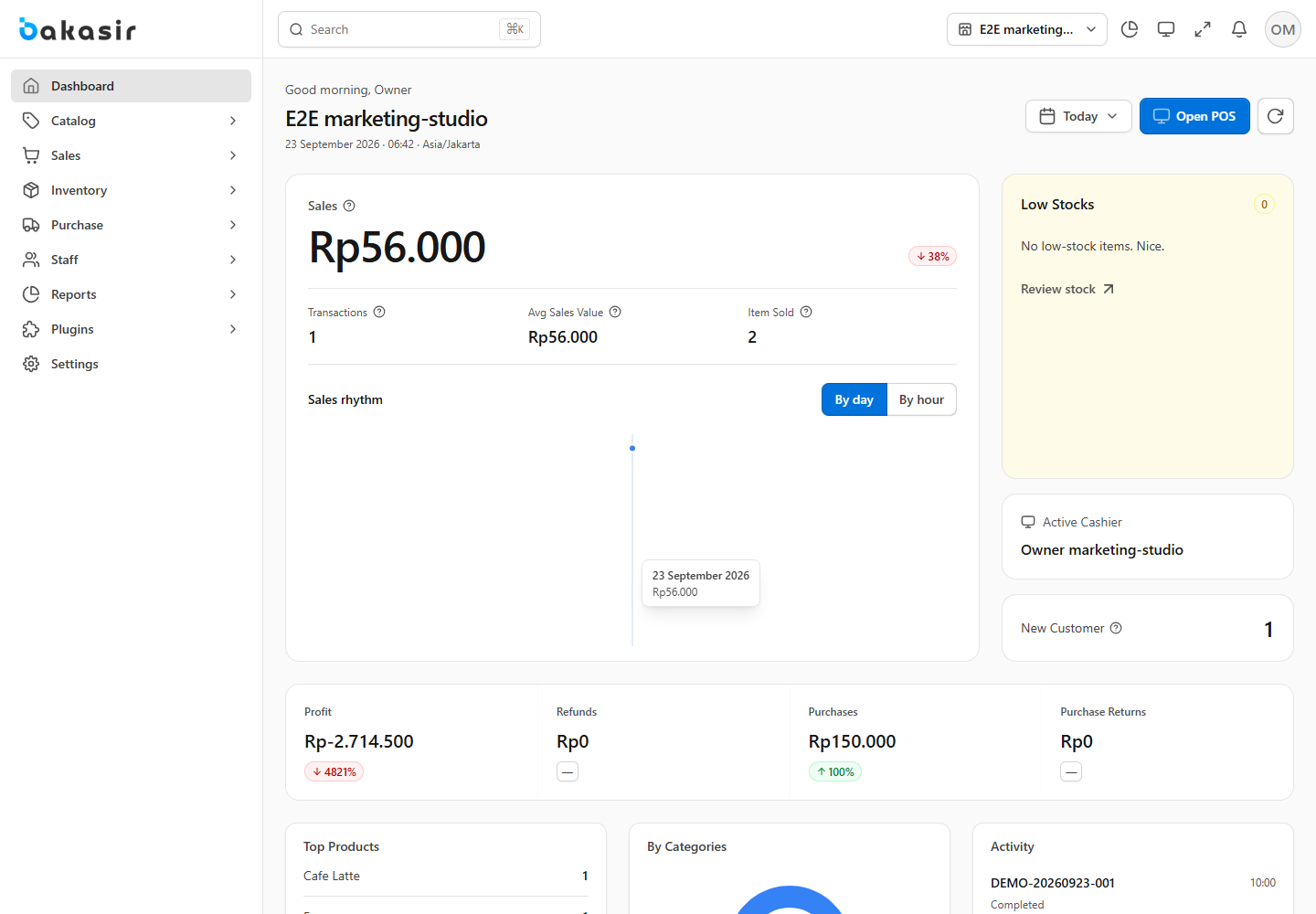
Watch it in Inventory → Stock Monitor. The cards at the top show Stock Valuation, Low Stock and Total Products. The Low Stock tab separates products below the reorder point from those already out of stock. The Dashboard also has a low-stock panel, and the notification bell shows the alerts. Owners using the Android Owner app see a low-stock summary on their phone.
Make supplier purchases the single door for new stock
New stock should come in through Purchasing → Purchases, not through manual adjustments. Record the supplier, receiving store, unit cost and quantity, and choose the status Received when the goods arrive. You get three results at once: stock goes up, cost is updated, and the amount owed to the supplier is recorded. Payments can be partial and spread over time. The full steps are in the guide to buying from suppliers.
Run regular stock counts
However good the system, differences will appear: damaged goods, wrong picks or miscounts. A stock count (opname) brings the system numbers back in line with the shelf. In Bakasir:
- Open Inventory → Stock Opname, then Start Reconciliation.
- Choose the store, count date and a name such as "Monthly count".
- Add the products you counted and enter the Counted quantity from the shelf. Save as a draft if you are not finished.
- Open the draft: Bakasir shows On Hand, Counted and Variance for each product.
- Click Post. The count is frozen and the differences are applied to stock.
Tips: count during quiet hours, because sales during the count change the numbers. Start with high-value, fast-moving items, then go shelf by shelf. Only Owners and Managers can post a count; cashiers can only view stock.
Fix a single item with a stock adjustment
For a small fix, use Inventory → Stock Adjustment. Choose a reason: Correction, Damage, Theft, Expiry or Other, then pick addition or subtraction. Submitting an adjustment changes stock immediately and cannot be undone, so give a clear reason. Consistent reasons help you spot patterns, such as expired goods recurring in one category. The history of every movement is in Stock Activity: Sale, Purchase, Adjustment, Transfer, Return, Opening Stock, Void or Import.
Move stock between outlets
If you have more than one outlet, stock is kept per outlet. Moving it goes through Inventory → Stock Transfer:
- Click New Transfer and pick the source and destination stores (they must differ).
- Set the transfer date and expected arrival, then add the products and quantities.
- Use the Actions menu: Dispatch when goods leave, Receive when they arrive, or Cancel.
A transfer moves through Draft, Sent and Received, so you always know what is in transit. Moving stock between outlets is manual like this; Bakasir does not move stock automatically, so the numbers at each outlet never drift without your knowledge.
A fast cashier helps keep stock accurate
The Supermarket POS layout is built for quick scanning: a scan table with code, item, quantity, price and subtotal, plus a Price Check button. A barcode scanner that types like a keyboard fills the search field. A cashier who just scans makes fewer typing mistakes, which means fewer stock differences. For items sold by weight, the Desktop app can read the figure from a connected scale.
Costing method and sync conflicts
- Costing method (Moving Average, FIFO or Batch Specific) is set in Settings → System and only affects later movements. For most groceries, moving average is enough.
- Sync conflicts. If a cashier sells offline and server stock is no longer enough, the sale waits in Stock Monitor → Sync Conflicts. Choose Keep Server Stock or Accept Sale.
- Stock turnover. The Inventory Turn Over (ITO) plugin, included in the Tumbuh plan, highlights slow and dead stock.
- Shelf labels. The Print Barcode plugin provides a Windows program for printing barcode and price labels.
A realistic weekly stock routine
| When | What to do | Time |
|---|---|---|
| Every morning | Check the Low Stock tab and make a shopping list | 5 minutes |
| When goods arrive | Record a purchase with status Received | Per delivery |
| Weekly | Count one shelf or one category | 30 minutes |
| Monthly | Full count, then review Stock Activity | Half a day |
Next steps
Learn the detailed steps in the guide to controlling your stock, then watch daily sales and profit with the daily sales report checklist. Plan details are on the pricing page.
Ready to try it yourself? The Free plan has no time limit and needs no credit card.
Keep reading
Daily Sales Report: 10 Numbers Every Business Owner Should Check
How to Switch POS Apps Without Losing Your Data
Pharmacy POS: Handling Batches and Expiry Dates
Frequently asked questions
How often should I do a stock count?
A partial count (one shelf or category) weekly and a full count monthly is a realistic rhythm for most stores. High-value items or those that often show differences deserve more frequent counts.
Does stock reduce automatically when a cashier sells?
Yes. Every sale reduces the stock of the outlet where it happened, and refunds or returns restore it. Orders from the online store use the same stock.
Can one product have different stock at each outlet?
Yes. Stock is kept per outlet, and you pick your working outlet with the store selector in the Portal's left menu. Use Stock Transfer to move goods between outlets.