In a pharmacy, a box of medicine is never just one item. Every box has a batch number and an expiry date, and expired medicine must never reach a customer. A good pharmacy POS needs to know which batch to sell first, warn you when stock is nearing its end of life, and still be fast at the counter. This article explains how Bakasir handles batches and expiry dates from purchase to sale.
A pharmacy POS starts with the Pharmacy layout
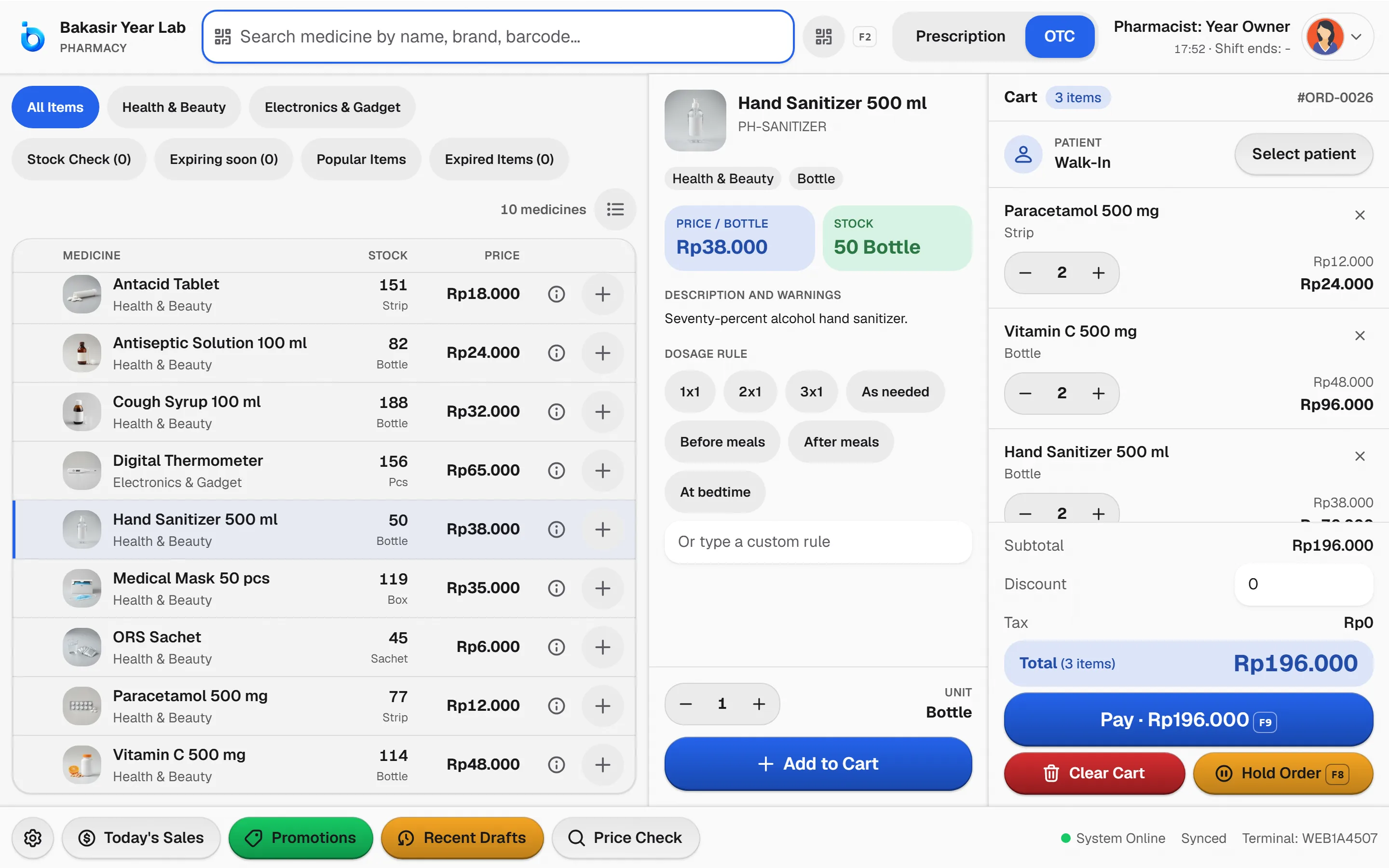
If you sign up with the Pharmacy business type, your register uses the Pharmacy layout. This layout is only available to pharmacy businesses. It is designed around medicine:
- Fast medicine search, with stock and the nearest expiry date shown in the results.
- Prescription and OTC modes, which you switch with the F4 key.
- A Dosage rule field, such as 3 x 1, After meals or Before meals.
- Keyboard shortcuts in Web POS: F2 to search, F4 to switch Prescription and OTC, F8 to hold and F9 to pay.
The same layout is available in the Desktop and Android apps. See the Web POS overview to compare all checkout styles.
Record batch and expiry when goods arrive
Batch discipline starts at receiving. In Purchasing → Purchases, every product line has a Batch No. and Expiry Date field. Fill both from the packaging when the goods arrive, then set the status to Received. One product can hold several batches in stock at once, each with its own quantity and expiry date.
If you already hold stock, batch number and expiry columns are also available when importing data. The migration engine can carry batch numbers and expiry dates from an old POS when its export stores them; see the guide to switching POS apps. The full purchasing walkthrough is in buying from suppliers.
At the sale: the nearest-expiry batch comes first
When a cashier picks a medicine that has batches, Bakasir asks which batch to use. The ordering already helps:
- The batch with the nearest expiry appears on top and is preselected, marked First to expire.
- A batch close to the end of its shelf life is marked Expiring soon.
- An expired batch cannot be sold. The system refuses the sale.
- The cashier enters the dosage rule if needed, then pays as usual.
This pattern helps a pharmacy sell older stock first, so medicine does not pile up and expire at the back of the shelf.
Watch for medicine that is about to expire or already has
Three tools help:
- Expired Items in the Pharmacy layout: a list of unsold batches that are past their expiry date. The screen states that they must be removed from saleable stock.
- Stock Check: a list of medicines at or below the reorder point.
- Batch expiry warning in Settings → Notifications: choose how many days before expiry you want to be alerted. Batches nearing expiry fall under the stock notification category.
Because these figures depend on the data you enter, the habit of filling in batch and date at every receipt decides how useful the warnings are.
Removing expired medicine from stock
Expired medicine should be recorded, not quietly removed. Use Inventory → Stock Adjustment with the reason Expiry, choose subtraction and submit. The movement appears in Stock Activity so there is a clear trail, and its value shows up in inventory reports. For medicine returned to the supplier, use a purchase return. More on stock is in controlling your stock.
Returns and refunds keep batches intact
When a sale is refunded or voided, all items go back to outlet stock, including batches in a pharmacy. For a refund or void by Staff, the system asks for a Manager or Owner approval PIN, so decisions affecting stock and money do not rest on a single person. See refunds and voids.
Costing method: choose what suits medicine
In Settings → System you can pick the costing method: Moving Average (default), FIFO or Batch Specific. For a pharmacy, FIFO or Batch Specific gives a cost that follows the batch actually sold, which helps when each batch had a different purchase price. A method change only affects later stock movements.
Regular stock counts
Match system numbers with the shelf through Inventory → Stock Opname. Count by shelf or by medicine group, save a draft, then post. While counting, check the expiry date on the packaging too. A realistic schedule is a partial count weekly and a full count monthly.
Keep working when the internet struggles
A pharmacy cannot close the counter because of a weak signal. The Desktop and Android apps store sales on the device and send them when the connection returns. If server stock is no longer enough at sync time, the sale waits in Sync Conflicts for you to decide. More in the offline POS article.
Before going fully live, ask the pharmacist or an assistant to match 20 batches on the shelf with the data in Bakasir: batch number, expiry date and quantity. Findings at this stage are cheap to fix, while findings after customers are involved cost far more.
Next steps
Set up your first 10 medicines with batch and expiry, sell one, and check that the batch chosen is the one you expect. Plan details are on the pricing page.
Ready to try it yourself? The Free plan has no time limit and needs no credit card.
Keep reading
Stock Management for Grocery Stores and Minimarkets: Low Stock, Counts, and Transfers
Offline POS: How to Keep Selling When the Internet Goes Down
Daily Sales Report: 10 Numbers Every Business Owner Should Check
Frequently asked questions
Can an expired batch be sold by accident?
An expired batch cannot be sold at the register. A batch that is about to expire is marked Expiring soon so the cashier and pharmacist can decide.
Does Bakasir replace a pharmacy's reporting to the authorities?
No. Bakasir is a POS and stock app. Recording and reporting duties set by regulation still have to be met by the pharmacy under the rules that apply.
Can a shop use the Pharmacy layout if its business type is retail?
The Pharmacy layout is only open to businesses of the pharmacy type. Choose the Pharmacy business type at sign-up so this layout is available.