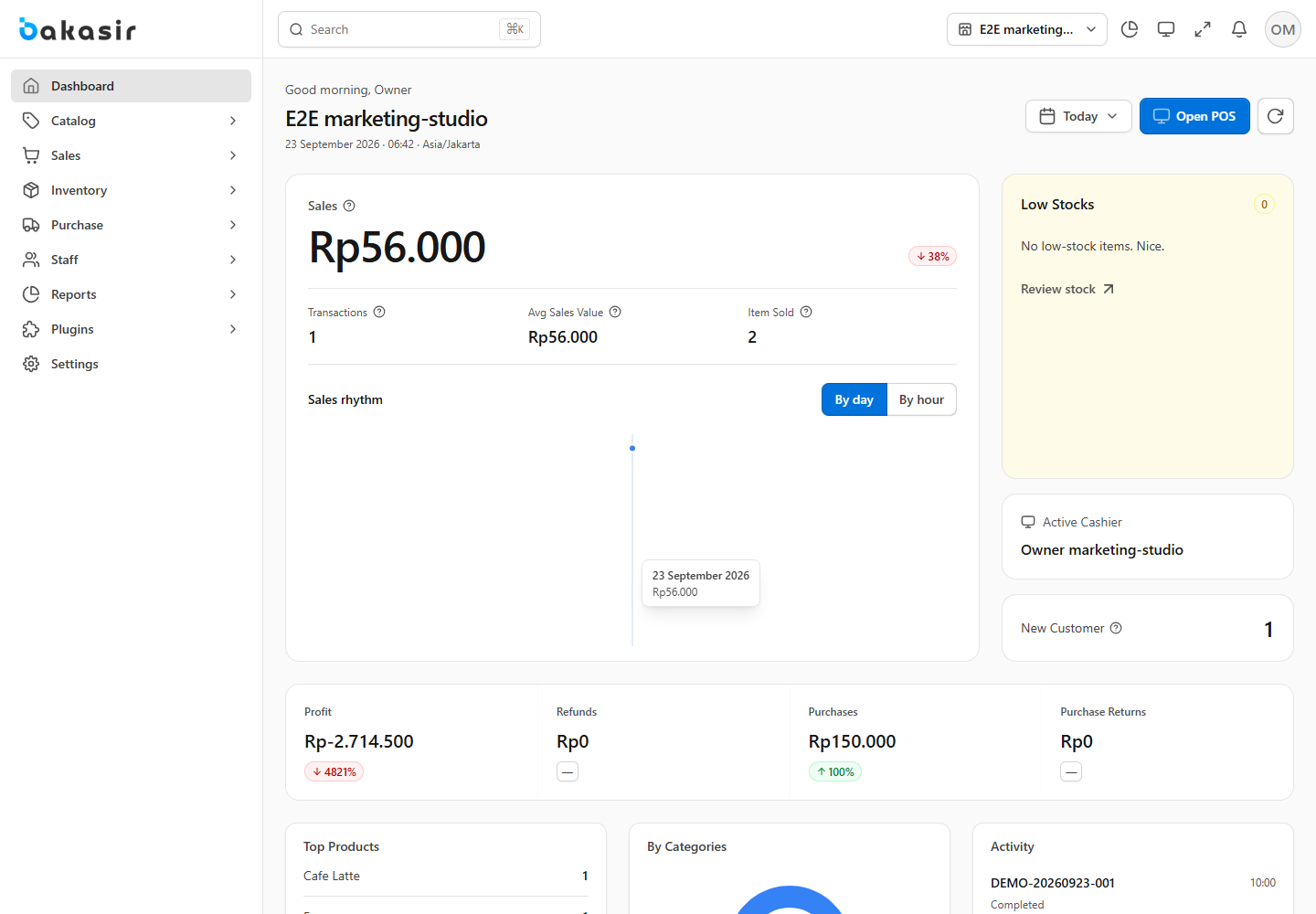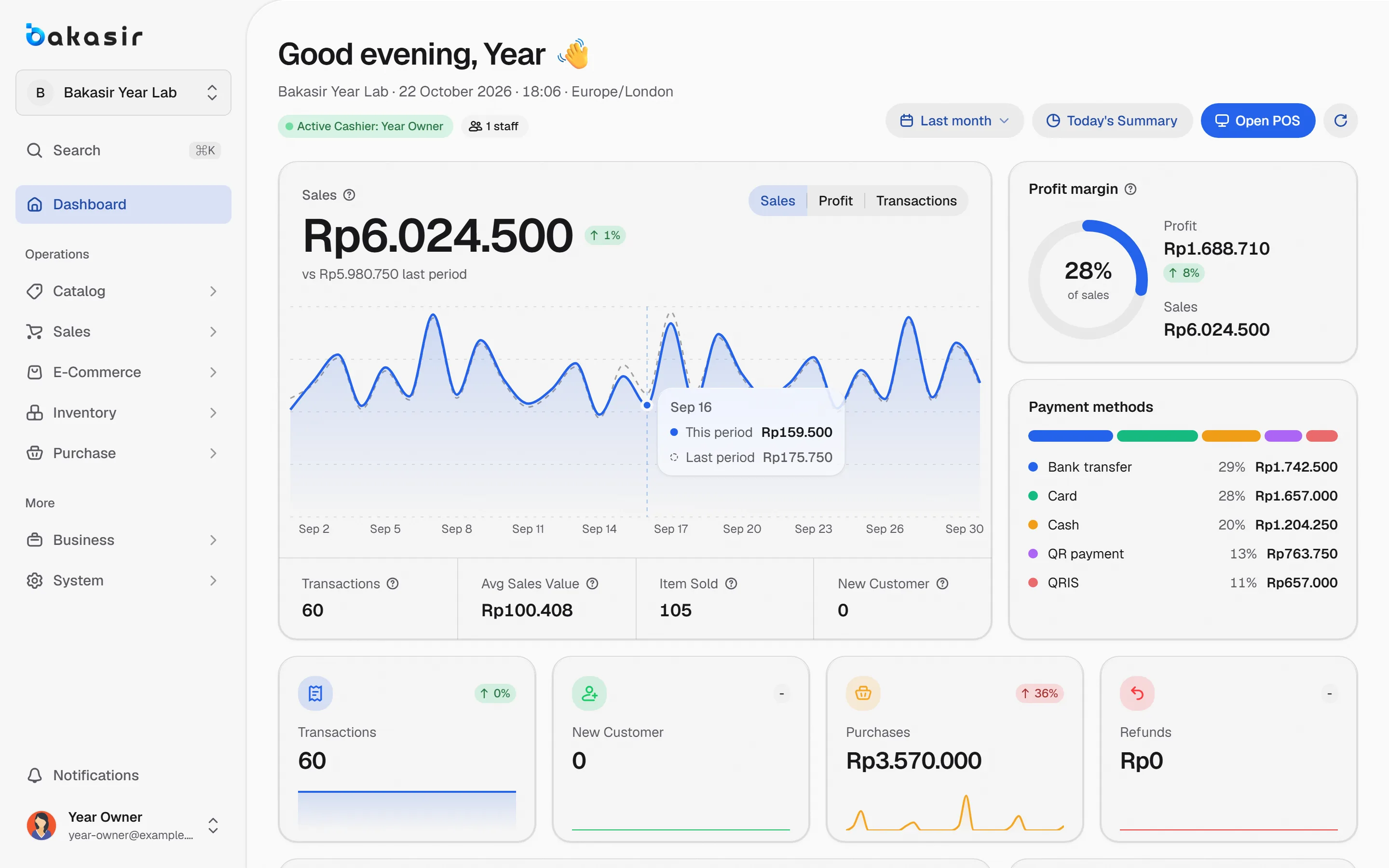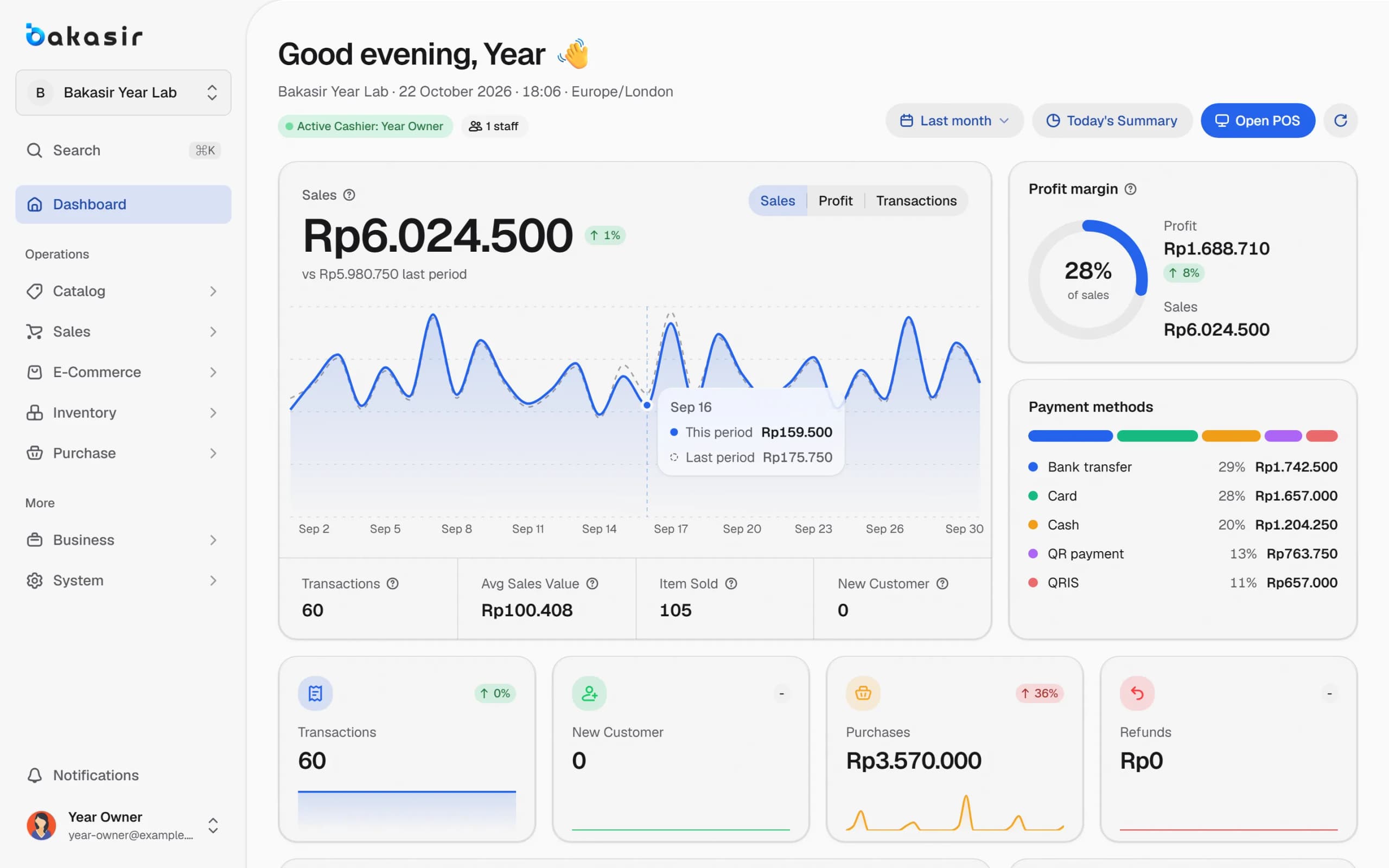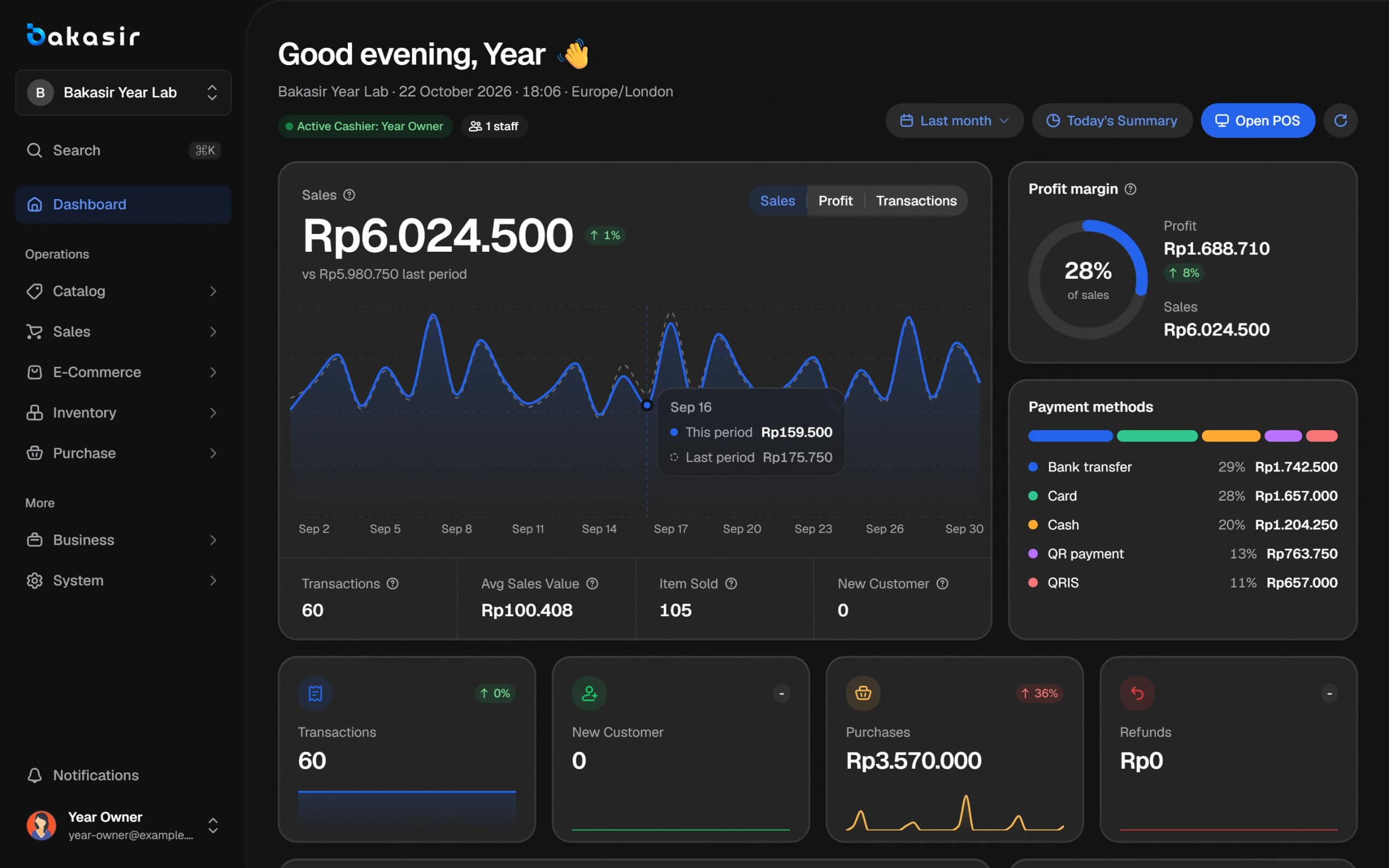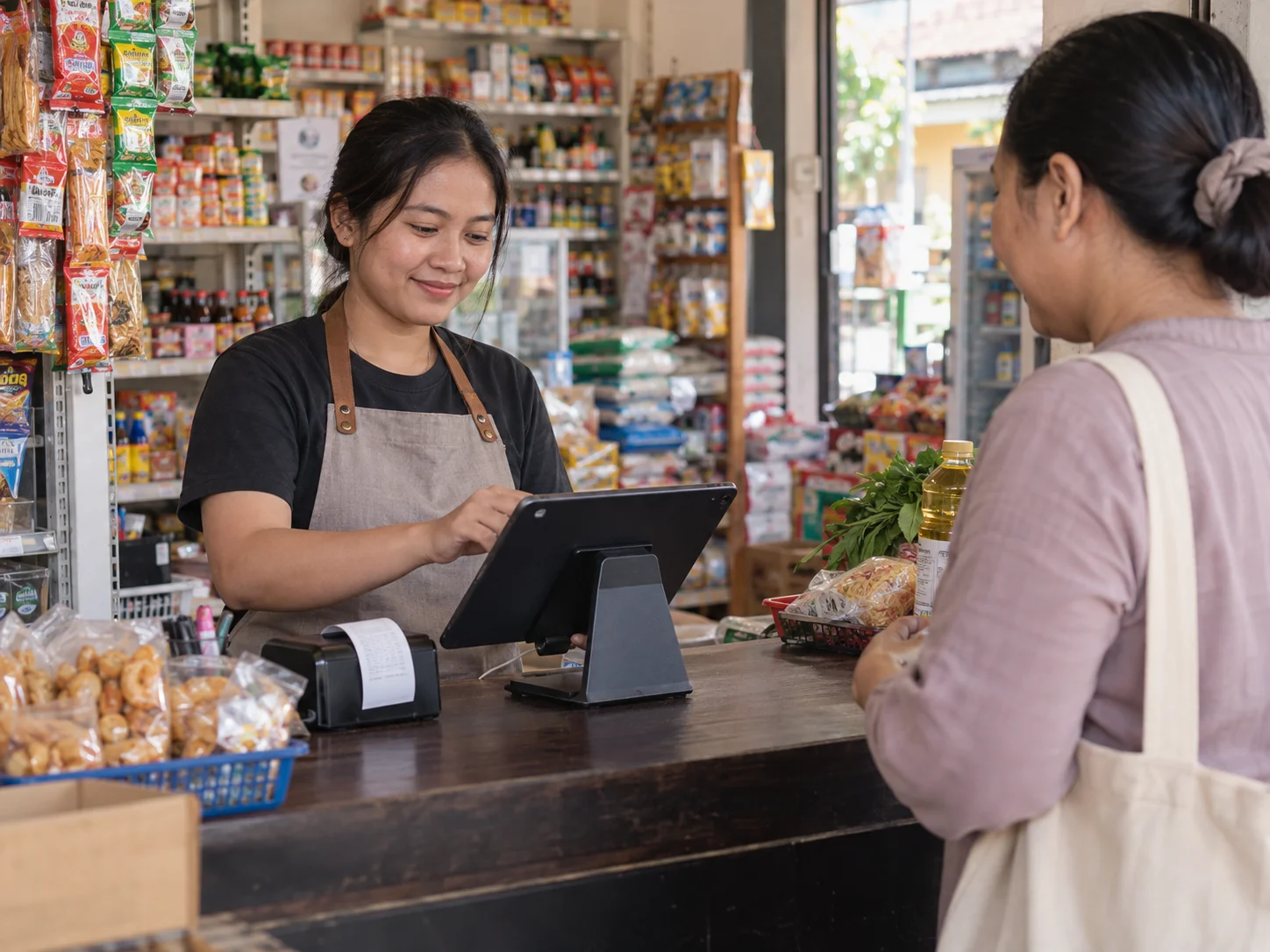
The internet dropping just as the queue grows is every shop owner's nightmare. Without an offline POS, customers wait, sales stall and the cashier goes back to paper. The good news is that a modern POS can keep selling without a connection and send the data later. This article explains how offline mode works in Bakasir Web POS, the Windows Desktop app and the Android app, including what still needs the internet.
How an offline POS works, in short
The idea is simple. While a connection exists, the device keeps a copy of the catalog (products, prices, promotions, settings). When the connection drops, the cashier can still pick products, compute totals, take payment and print a receipt from that copy. Each sale goes into a queue on the device. As soon as the internet returns, the queue is sent in order to Bakasir, and stock and reports update.
Every offline sale gets a local receipt number, so no two receipts collide. A sale that is re-sent will not be recorded twice.
Web POS: selling in the browser without internet
If the connection drops while the POS is open, sales are stored on that device with a local receipt number and sent when the connection returns. The top of the screen shows the status: Offline, N sales pending sync, or Synced. Things to remember:
- The Owner controls this with Enable offline POS on web in Settings → POS.
- A new register cannot be opened while offline. Open the register and load the POS while you are still online.
- Items of held table orders are kept in the browser where you opened them, so finish a table on the same computer.
Full details are in the Web POS overview and the payments guide.
Windows Desktop app: saved catalog and queue
After a cashier signs in with a PIN, the Desktop app keeps working if the connection drops. Sales continue from the saved catalog (a Saved catalog label appears), each sale gets its own receipt number, and the done screen says the sale was saved offline and is waiting to sync. The N queued chip beside the search box counts waiting sales; click it to send now. Prices, promotions, wholesale prices, member points and approval rules are the same as in Web POS.
The receipt printer and cash drawer connect straight to the computer, so printing does not depend on the internet. On the Devices page, the Run tests button checks the server connection and shows the offline queue: how many sales are waiting and how many failed. See selling on Desktop.
Android app: a queue on the phone or tablet
On Android, the POS shows an Offline chip and keeps selling. The Home screen shows chips such as "2 waiting to sync" and "1 failed". A sale the server rejected appears in Sales under Waiting to upload with the server's reply; you can tap Retry, or hold the button to discard it. The full guide is in shifts, cash and sales on Android.
What happens when server stock is not enough
Two cashiers can sell the same item while offline, or stock can change on another device. When the queue is sent and server stock turns out to be insufficient, the sale is not lost. It waits in Inventory → Stock Monitor → Sync Conflicts. The Owner or a Manager chooses Keep Server Stock to leave stock as it is, or Accept Sale to accept it anyway. The decision stays with you, not the system.
What about the Free plan transaction limit
Offline sales that go over the Free plan's 300-transaction monthly quota are still accepted when they sync, and the owner and cashier are notified. Further online sales over the quota are declined until the month rolls over or you upgrade. More in the free POS app article, and every plan limit is on the pricing page.
What still needs the internet
Offline mode keeps the core register running, but some things genuinely need a connection:
| Item | Reason |
|---|---|
| Installing and pairing the Desktop or Android app, and the first sign-in | The device must fetch the catalog and terminal identity |
| Opening a new register in Web POS | The register session is created on the server |
| Dynamic QRIS through a gateway | The QR code is generated by the payment gateway, so it needs a network |
| Orders from the online store | Orders arrive over the internet |
| Remote approval requests to a Manager's phone | The notification is delivered through the server |
| Reports in the Portal | New sales show up only after they reach the server |
For non-cash payments while offline, record the method and confirm the money in your own bank or e-wallet app before completing the sale.
A checklist to be ready before the internet drops
- Sign in and load the POS on every device while still online, then open the register.
- Make sure the latest catalog has loaded (update prices before opening time).
- Keep a backup connection, such as a phone hotspot, to flush the queue.
- Train cashiers to read the Offline status and the queue.
- Before closing the register, make sure the queue is empty. Offline sales reach the Z report only once they are on the server.
- Check Sync Conflicts at the end of any day with offline sales.
One more simple habit: look at the queue chip at the start and end of every shift. If the queue number does not drop after the internet returns, check that device's connection and send manually from the queue chip. This way a small problem is caught before it piles up into a difference at register close.
Next steps
Test it yourself: switch off wifi for ten minutes during a quiet hour, make a few sales, then switch it back on and watch the queue send. For shops with patchy signal, this should be part of the trial before choosing an app; see also the POS selection checklist.
Ready to try it yourself? The Free plan has no time limit and needs no credit card.
Keep reading
How to Choose a POS App for Your Small Business: A Practical Checklist
Pharmacy POS: Handling Batches and Expiry Dates
QRIS at the Register: Static, Dynamic and How to Record Digital Payments
Frequently asked questions
Can offline sales data be lost?
Offline sales are stored on the device and only sent to the server once the connection returns. As long as the app or browser data is not cleared before syncing, the sales will be sent. So make sure the queue is empty before closing the register or clearing device data.
How long can the register stay offline?
We do not promise a fixed time limit. The longer you stay offline, the more likely stock on other devices changes and sync conflicts appear, so reconnect as soon as you can.
Does the receipt printer still work offline?
A printer connected directly to the computer or Android device can still print, because printing happens locally.