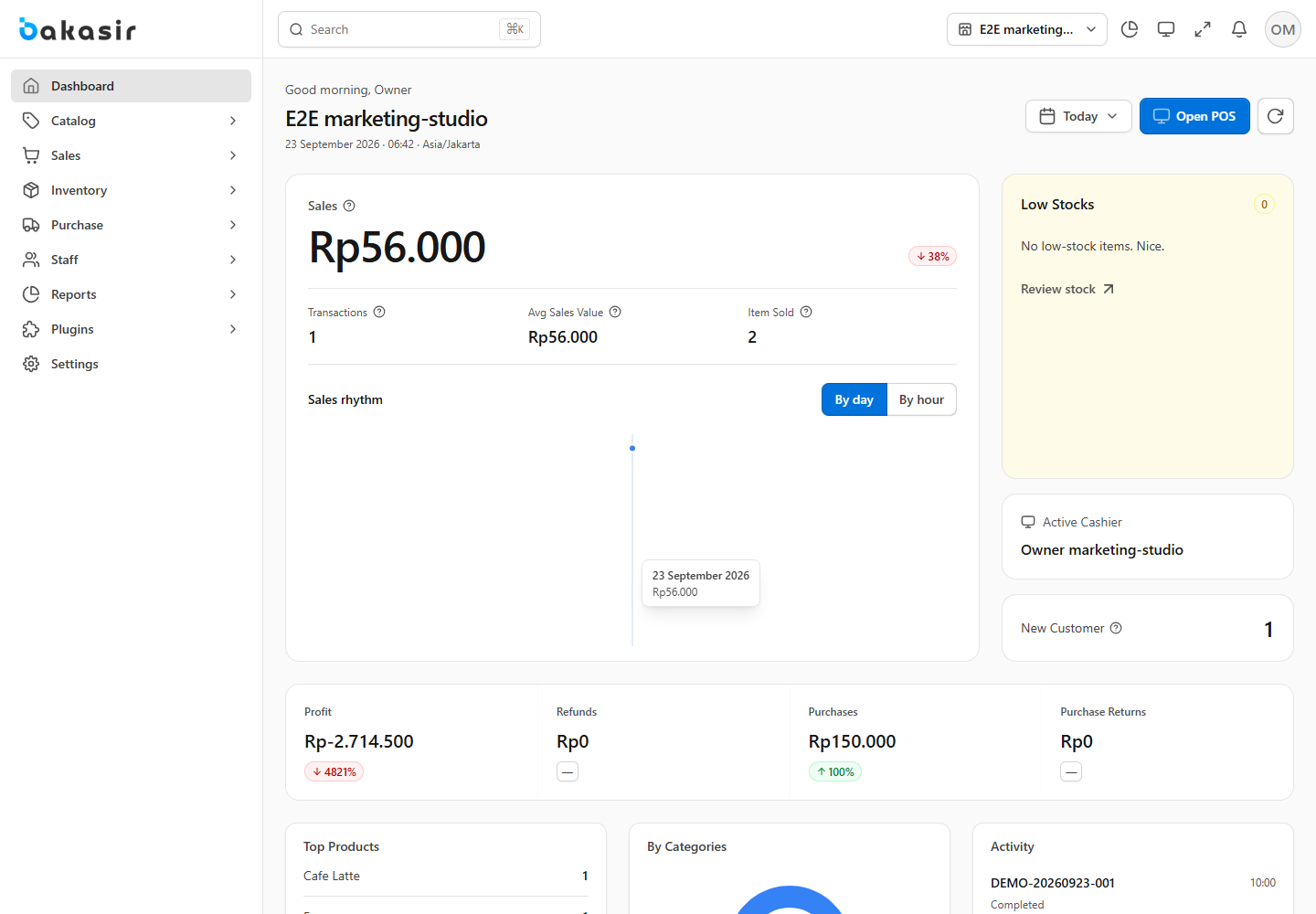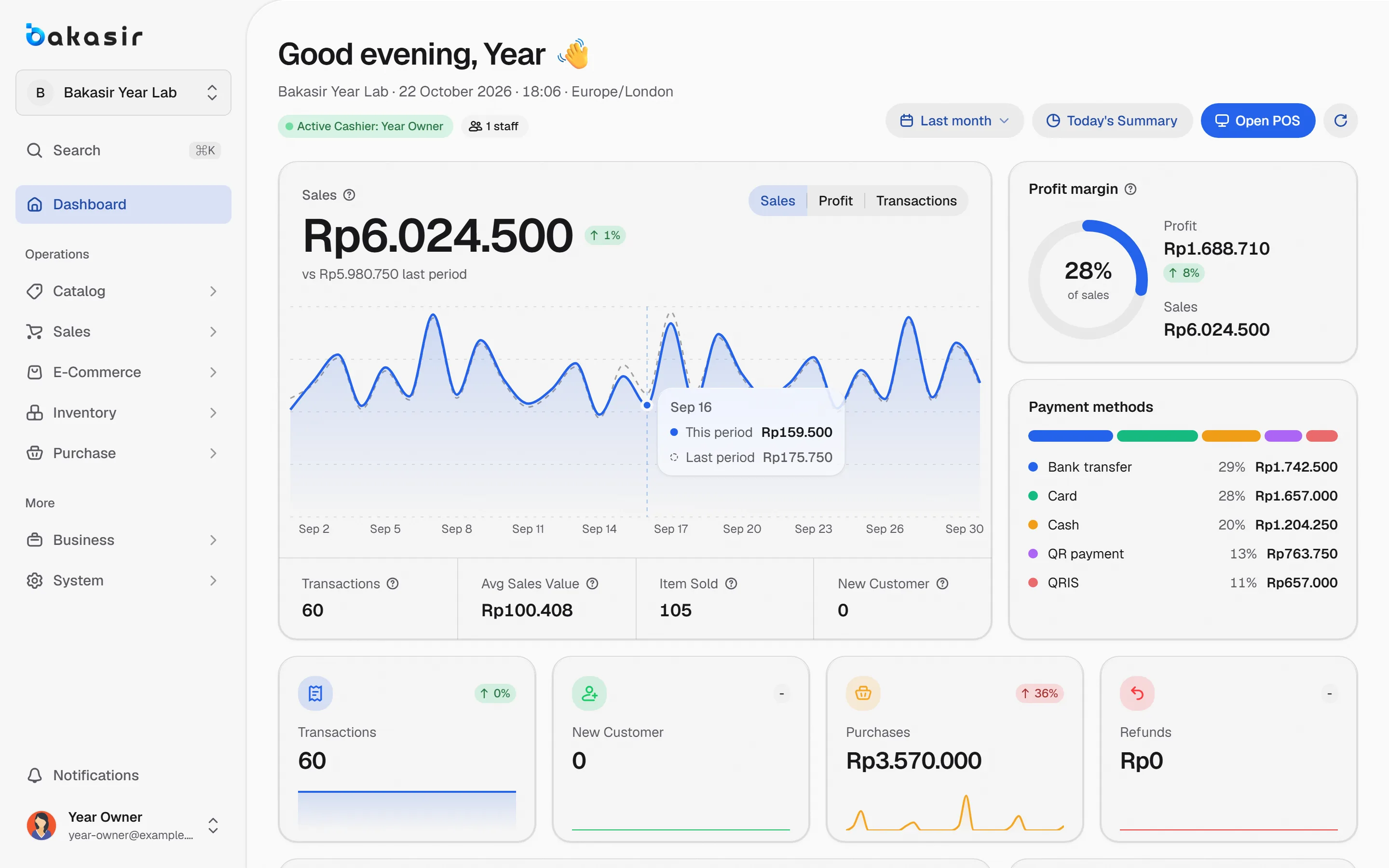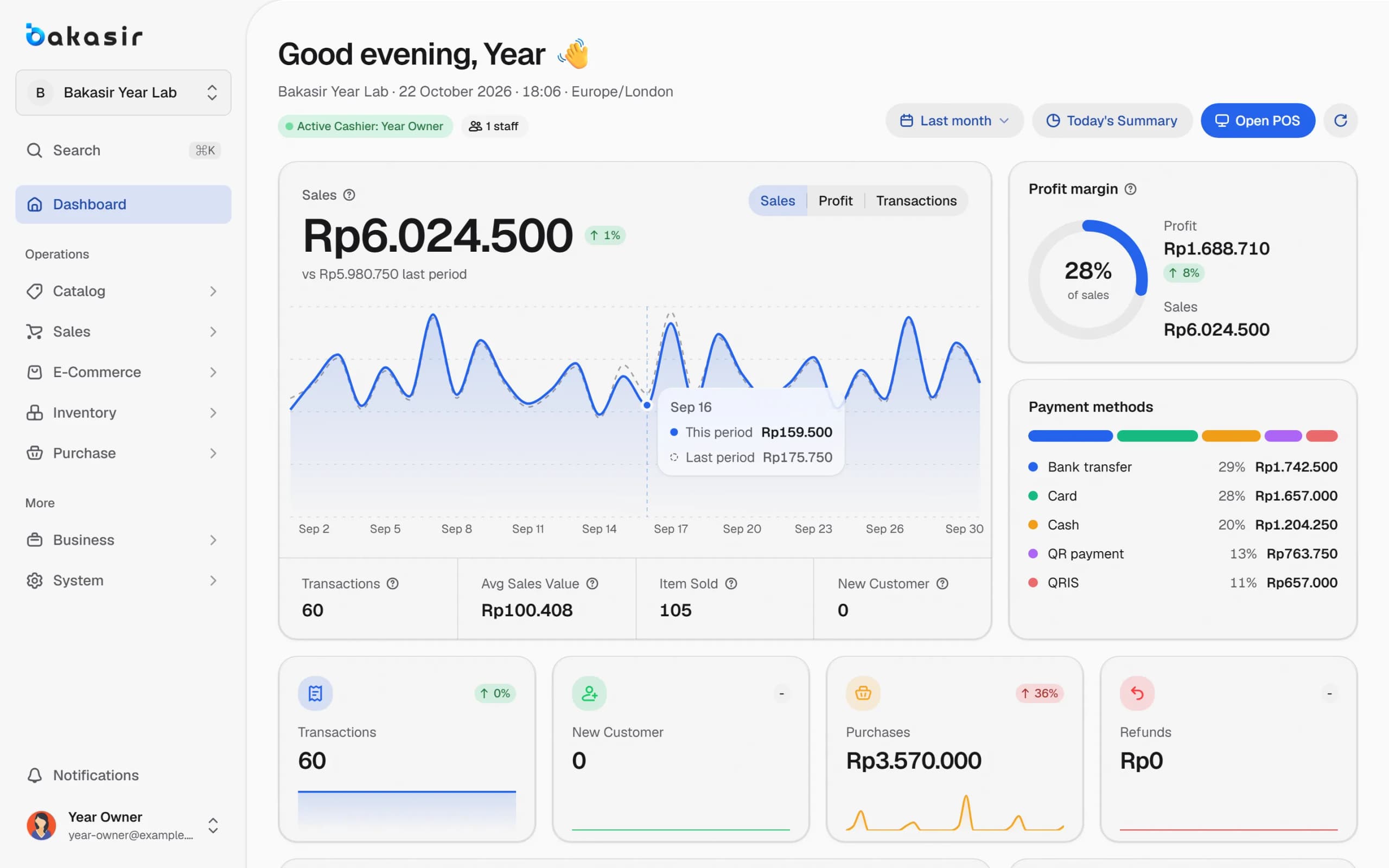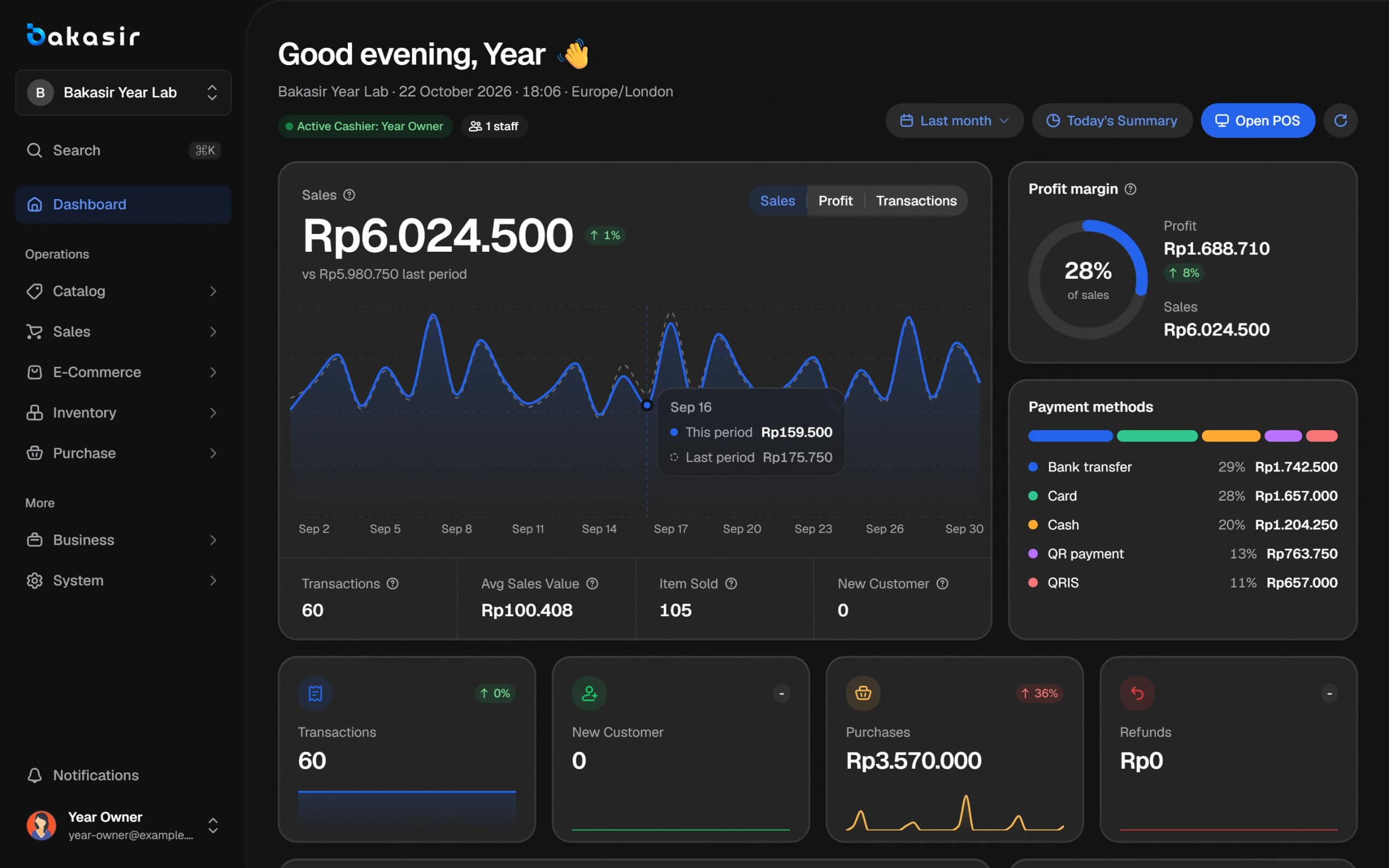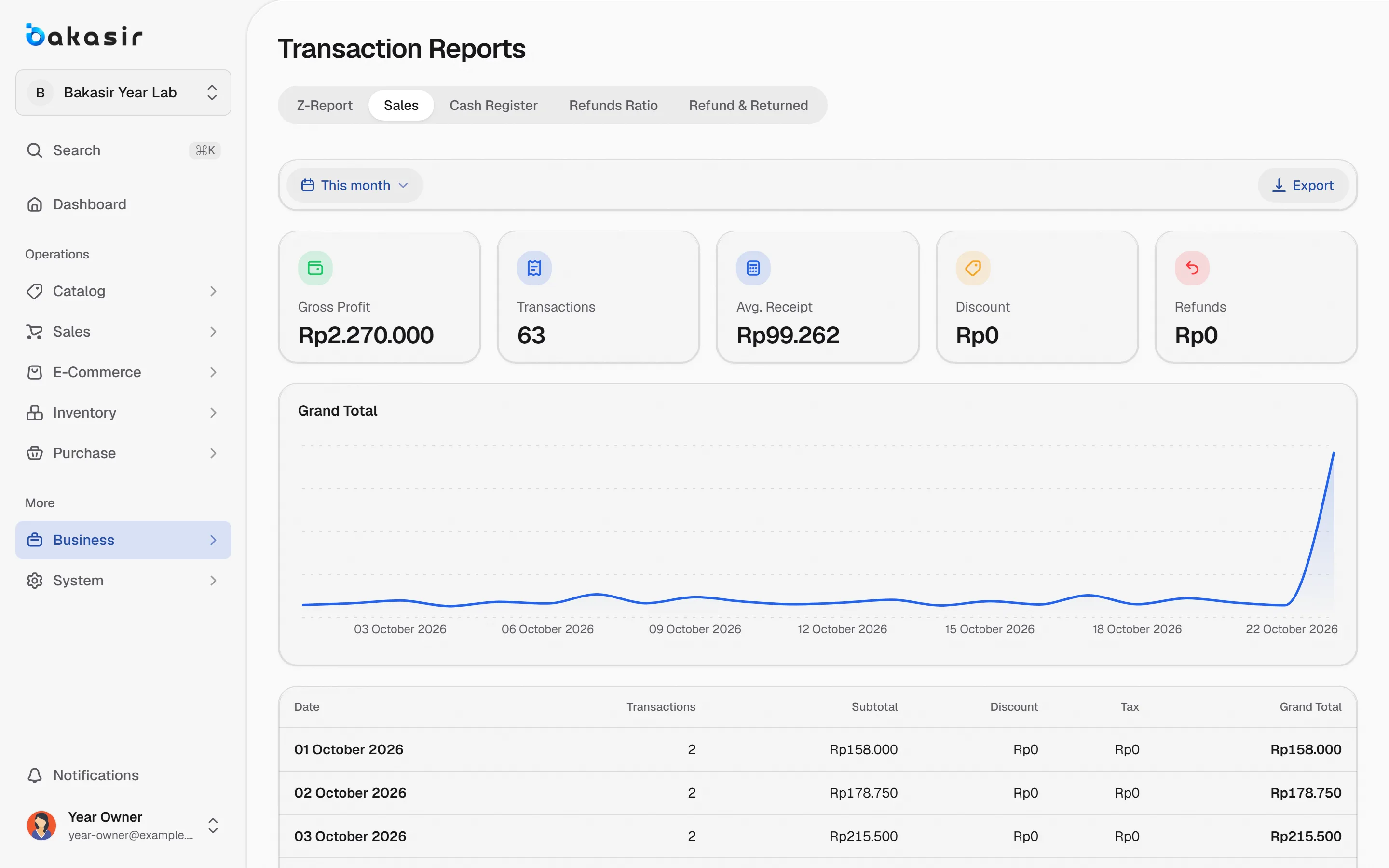
Many owners have sales data but rarely open it. The reasons are simple: there are too many reports, the numbers have no obvious use, and time is short. Yet a daily sales report read consistently for 10 minutes can expose cash leaks, wrongly stocked goods and badly timed staffing faster than any monthly report. This article lists 10 numbers worth watching and where to find them in Bakasir.
Ten numbers for your daily sales report
The table below is a framework. You do not need all of them every day, but know them all so an odd figure stands out at once.
| Number | The question it answers | Where it is in Bakasir |
|---|---|---|
| 1. Today's sales | Is today better than usual? | Dashboard, Sales card with the change from the previous period |
| 2. Transaction count | How many customers bought? | Dashboard, Transactions card |
| 3. Average sale value | Are customers buying less per visit? | Dashboard, Avg Sales Value |
| 4. Profit and margin | Do sales actually produce profit? | Dashboard, Profit margin; Profit & Loss report |
| 5. Payment methods | How much is cash, QRIS, card and transfer? | Dashboard, Payment methods; Z-Report |
| 6. Refunds and voids | Is there a suspicious pattern? | Dashboard; Z-Report; Sales → Transactions |
| 7. Cash difference | Does the drawer match the records? | Reports → Transaction Reports, Cash Register tab |
| 8. Best sellers | What must always be on the shelf? | Dashboard, Top Products; Product Analytics |
| 9. Low and out of stock | What must be bought today? | Dashboard, Low Stocks; Inventory → Stock Monitor |
| 10. Peak hours and shifts | Does the staff schedule match the rush? | Dashboard, Peak hours heat map and Shift card |
1 to 3: sales, transactions and average
Read these three together. Sales up because transactions grew means more customers. Sales up because the average value grew means customers buy more per visit, perhaps due to a promotion or bundle. Sales down with the same transaction count means something changed in the basket. On the Dashboard, pick a date range (Today, Yesterday, Last 7 days and so on) and every card follows it. Only completed sales are counted; an online order counts as revenue only once it is completed.
4: profit and margin, not just turnover
Big turnover does not automatically mean big profit. Bakasir computes profit as net sales without tax minus the cost of goods sold, and net profit in Today's Summary also subtracts expenses. That is why cost prices on products and purchases must stay current. Open the Profit & Loss tab in Business Analytics for Total Income, Cost of Goods Sold, Gross Profit, Expenses and Net Profit.
5 and 6: payments and voids
The payment methods panel shows the cash and non-cash mix. It matters for two reasons: knowing how much cash should be in the drawer, and preparing to reconcile with your bank account or gateway. The Z-Report breaks down transactions, gross sales, discounts, tax, net sales, amount paid, change and refunds per payment method.
Watch refunds and voids too. Bakasir shows them separately so they are never counted twice. If the figure jumps for one cashier, open Sales → Transactions, filter by Canceled or Refunded status and trace it. Staff cashiers need a Manager or Owner approval PIN for manual discounts, refunds and voids, so there is a trail of who approved them.
7: the cash difference, every day
In Reports → Transaction Reports, the Cash Register tab lists each register session with Opened, Cash In, Cash Out, Closing and Difference. The formula: expected cash in the drawer equals opening balance plus cash in minus cash out. A small difference happens now and then, but a repeated one with the same cashier deserves a conversation. Card, QR, e-wallet and bank transfer payments do not count toward the drawer.
8 and 9: what sells, what runs out
The Top Products list and Product Analytics (Qty Sold, Revenue, Cost, Profit, Margin) tell you which products make money, not just which sell most often. A popular product with a thin margin means something different from a medium seller with a fat margin. Then check Low Stock so today's shopping list writes itself. For how to manage it, read stock management for grocery stores and minimarkets.
10: peak hours and shifts
The Peak hours heat map marks the days and hours that are Busy or Quiet. Use it to schedule staff and place promotions in quiet hours. The Shift card compares sales per shift when shifts are recorded. For schedules and attendance, see managing store staff.
A 10-minute routine at every close
- Minutes 1 to 2: open the Dashboard on the Today range. Note sales, transactions and average.
- Minutes 3 to 4: open Today's Summary for profit, purchases, stock value and who is on duty.
- Minutes 5 to 6: open the Cash Register tab and check the cash difference.
- Minutes 7 to 8: review refunds, voids and payment methods.
- Minutes 9 to 10: look at Low Stock and write tomorrow's shopping list.
After a week, add one more habit: compare with the same period last week before judging a product slow or fast.
Extra tools for deeper reports
- Export to PDF, Excel or CSV from any report, for the period and filters you are viewing.
- Custom Reports to build your own from sales, stock movements or purchases, with templates such as Sales per day, Best sellers, Sales per cashier and Busiest hours. The Report Builder is part of the Tumbuh plan.
- The Owner app on Android to follow sales, profit and low stock from your phone. Available from the Mulai plan.
- Scheduled reports that can be emailed to the owner on a schedule, set in Settings → Reports.
Step-by-step instructions are in the guide to reading reports and reading your dashboard. Remember that report history on the Free plan is 31 days; read what the Free plan includes and save a monthly export.
Next steps
Pick three numbers from the table above and make them a habit for a full week. Add more when the first three feel light. See which plans include the Report Builder and the Owner app on the pricing page.
Ready to try it yourself? The Free plan has no time limit and needs no credit card.
Keep reading
Stock Management for Grocery Stores and Minimarkets: Low Stock, Counts, and Transfers
Managing Store Staff: Attendance, Shifts and Simple Payroll
Small Business Tax and Your POS: VAT Settings, Receipts and Invoice Export
Frequently asked questions
Why does the Dashboard total differ from the Transactions list?
Compare the same date range and store, because dates follow the timezone in Settings → System. Online orders count as transactions when placed but become revenue only once completed, and refunds and voids are shown separately.
How often should I open reports?
Daily figures are enough at closing time. Do a weekly review for product and stock trends, and a monthly review for profit and loss, purchases and expenses.
Can I see reports per outlet?
Yes. Pick the outlet in the store selector in the Portal's left menu, or use the store filter in reports, which starts on All stores.