Small business tax often feels complicated, especially when the register, receipts and bookkeeping each run on their own. This article covers the parts a POS can help with: setting VAT at the register, printing your business identity on receipts, viewing a tax summary, and preparing output tax invoice data. We describe Bakasir features, not interpret the rules.
Small business tax: does your business need to charge VAT?
The first question is not about software, it is about your business status. In general, a business registered as a taxable entrepreneur (PKP) charges VAT and issues tax invoices, while a business that is not PKP generally does not charge VAT. PKP status relates to turnover and rules set by the government, and some businesses also register voluntarily. If you are unsure, ask your tax office or a consultant first. The answer decides whether the tax option on your register is on or off.
Setting tax in the Bakasir register
Tax is set in two places:
- Settings → System → Tax. Choose whether you collect tax, the tax name (for example VAT), the rate, and the mode: Inclusive or Exclusive.
- On each product. In the Pricing & Tax tab, fill in Tax Rate (%) and Tax Type, so different products can be treated differently.
The difference between inclusive and exclusive directly affects shelf prices. As an illustration, with a 10% rate (this figure is only a worked example):
| Mode | Product price in Bakasir | What the customer pays | Tax on the receipt |
|---|---|---|---|
| Exclusive | Rp100,000 | Rp110,000 | Rp10,000 added on top of the price |
| Inclusive | Rp110,000 | Rp110,000 | About Rp10,000 is already inside the price |
Pick one mode and stay consistent. A tax change only applies to later sales, and old receipts do not change. After changing settings, run one test sale. Full instructions are in the Settings overview and adding and managing products.
Business identity and tax number on receipts and invoices
In Settings → Business, fill in the Business Name, Legal Name, contact details, Tax Registration No / NPWP and Business Address. These print on receipts and invoices. In Settings → Receipt & Invoice you choose the receipt paper size (56, 76 or 80 mm), the receipt design, the document numbering prefixes, and what prints in the header, body and footer. Printed invoice designs are available for A4, Letter, Legal and Folio or F4. Receipts and invoice sales carry the tax breakdown according to your settings.
For business customers, fill in the Company Name and Tax No (NPWP) on the customer record. You will need that information when preparing a tax invoice for them.
Viewing a tax summary with the Accounting plugin
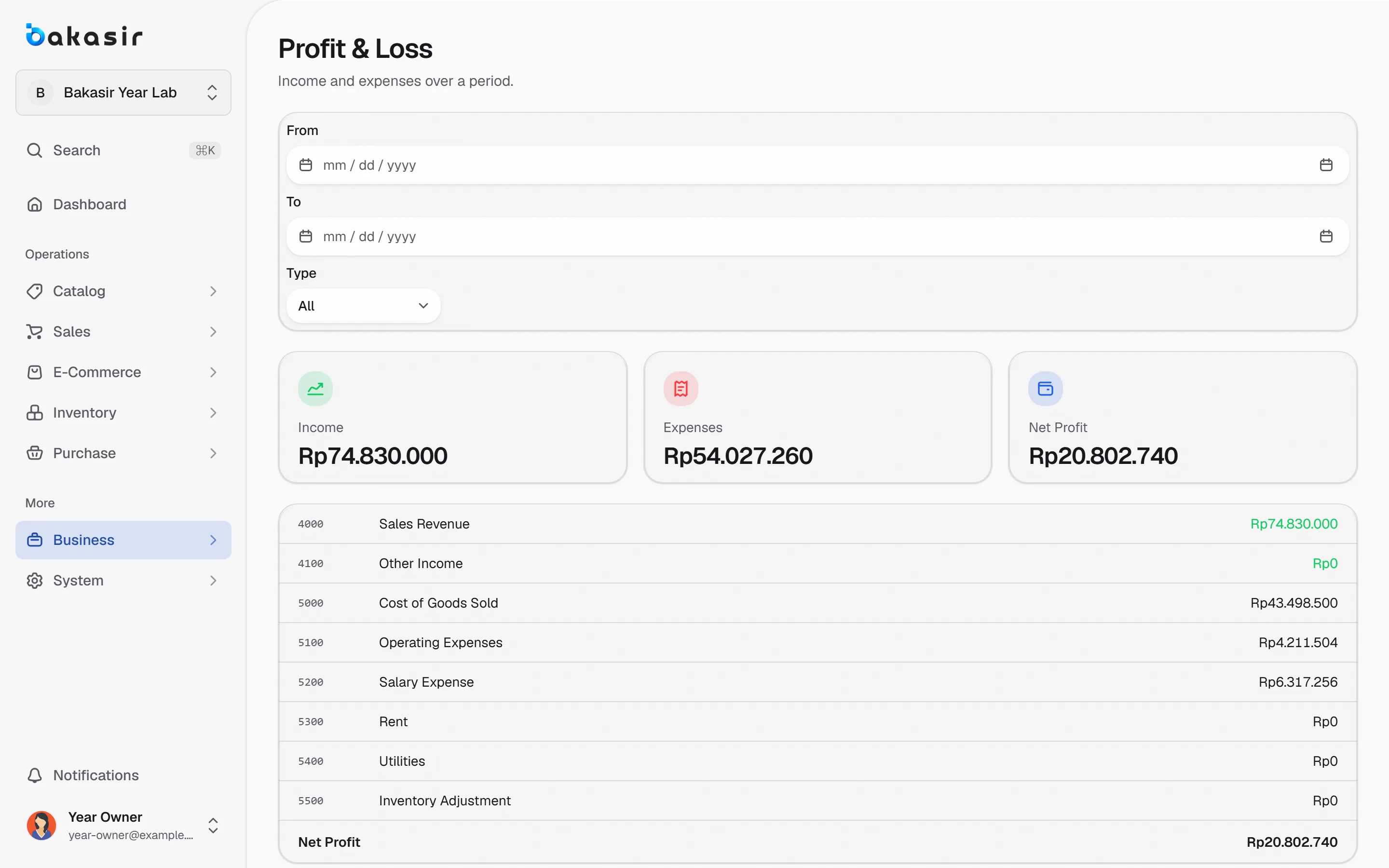
The Accounting plugin adds Accounting → Tax Summary Report. It sets the Output Tax collected on sales (after returns) against the Input Tax paid on purchases; Net Tax is the difference. Tax journals are created automatically from transactions, so you do not calculate by hand. The Accounting plugin is a paid add-on except on the Enterprise plan; check the pricing page for current numbers. The guide is at the Accounting extension.
Preparing output tax invoice data with the Coretax plugin
For businesses that report through Coretax, the Coretax plugin adds Reports → Coretax. The flow:
- Fill in the tax profile. Enter the NPWP (16 digits) and NITKU (22 digits), the transaction code, and the goods or service and unit reference codes. Enable Coretax reporting. Bakasir validates the length of these numbers before saving.
- Pick the period of sales to export.
- Export. Bakasir generates a TaxInvoiceBulk XML file from completed sales whose customer has a 16-digit NPWP. Sales to customers without a valid NPWP are skipped, and the count is reported.
- Upload that file yourself through the data import menu in your own Coretax.
There is also a summary CSV export (date, reference number, buyer, buyer NPWP, tax base, VAT and status) that helps with reconciliation. At the time of writing, the Coretax plugin is in beta and its price is not shown in the Marketplace; check its availability on your plan.
Important to understand: the tax authority publishes an XML import contract, not a public API for third-party apps. Bakasir builds the file in the requested shape, but Coretax is still what validates and accepts it, and you remain responsible for the content of your filing.
A data checklist for a smooth tax export
- System tax settings and per-product rates are correct.
- Business customers have a complete NPWP and address.
- Sales to those customers are recorded under the customer, not as anonymous sales.
- The Coretax profile is filled in and passes validation.
- Compare the invoice count in the file with the sales report before uploading.
- Keep each monthly export as an archive.
What Bakasir does not do
To keep expectations clear: Bakasir does not file reports with the tax authority on your behalf, does not calculate income tax, and does not replace a tax consultant. The app provides tidy transaction data so your work, or your consultant's, is lighter. For fuller bookkeeping, see the daily sales report checklist.
Next steps
Start by asking about your PKP status, then set tax once and test it with a single transaction. You can try the settings on the Free plan at no cost, and compare plans on the pricing page.
Ready to try it yourself? The Free plan has no time limit and needs no credit card.
Keep reading
Daily Sales Report: 10 Numbers Every Business Owner Should Check
An Online Store for Small Businesses, Connected to Your POS Stock
How to Switch POS Apps Without Losing Your Data
Frequently asked questions
Does Bakasir calculate VAT automatically on every transaction?
Yes, according to the settings you define: whether you collect tax, the rate, and inclusive or exclusive mode, including per-product rates. Bakasir calculates from the figures you enter, so make sure they are correct.
Are tax invoices sent to the tax authority automatically?
No. The Coretax plugin prepares a file in the import format, and you upload it yourself in Coretax.
Can I switch the tax mode from exclusive to inclusive mid-month?
You can, but the change only applies to later sales. So discuss it with a tax consultant first and change at the start of a period to keep your reports easy to read.