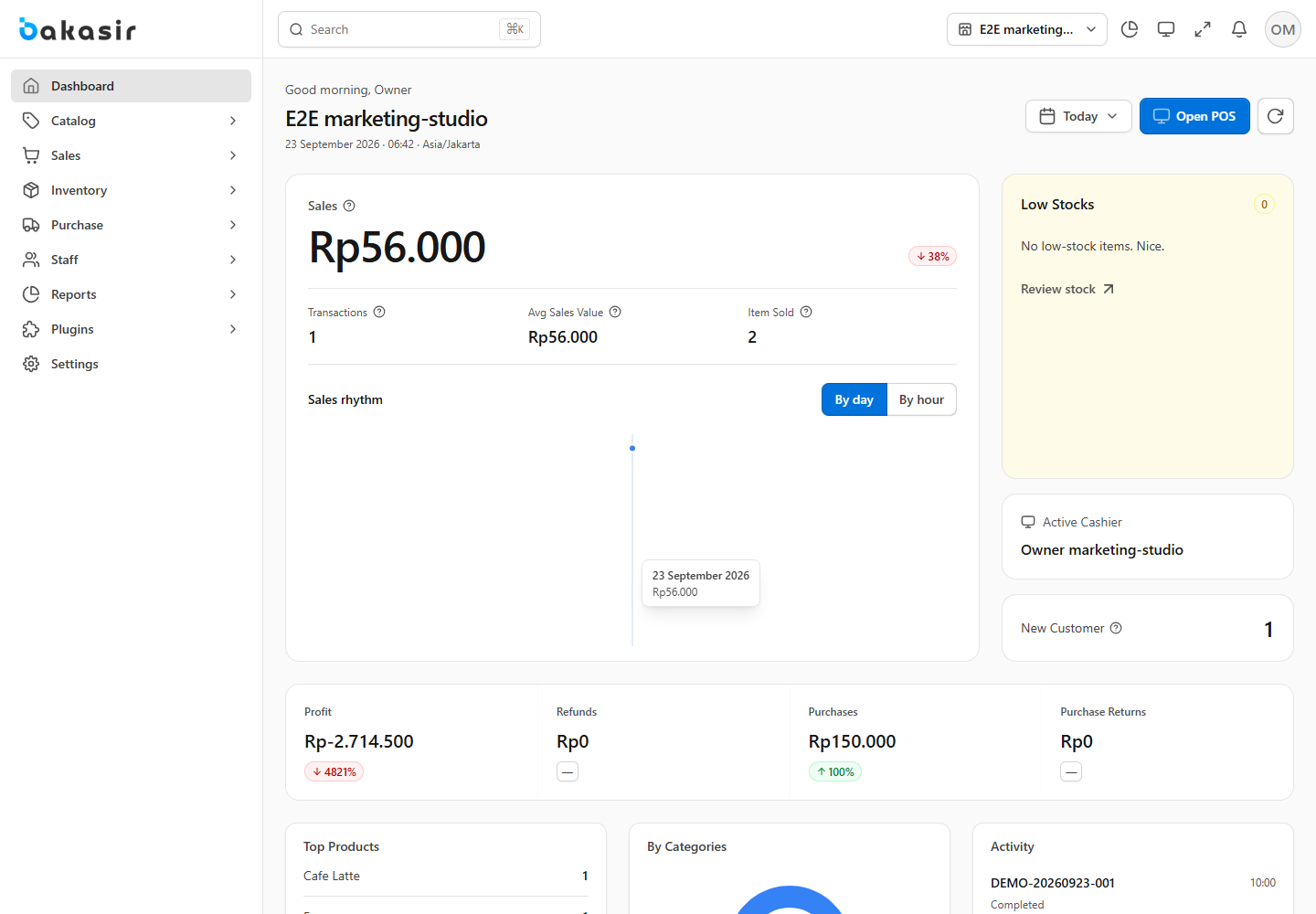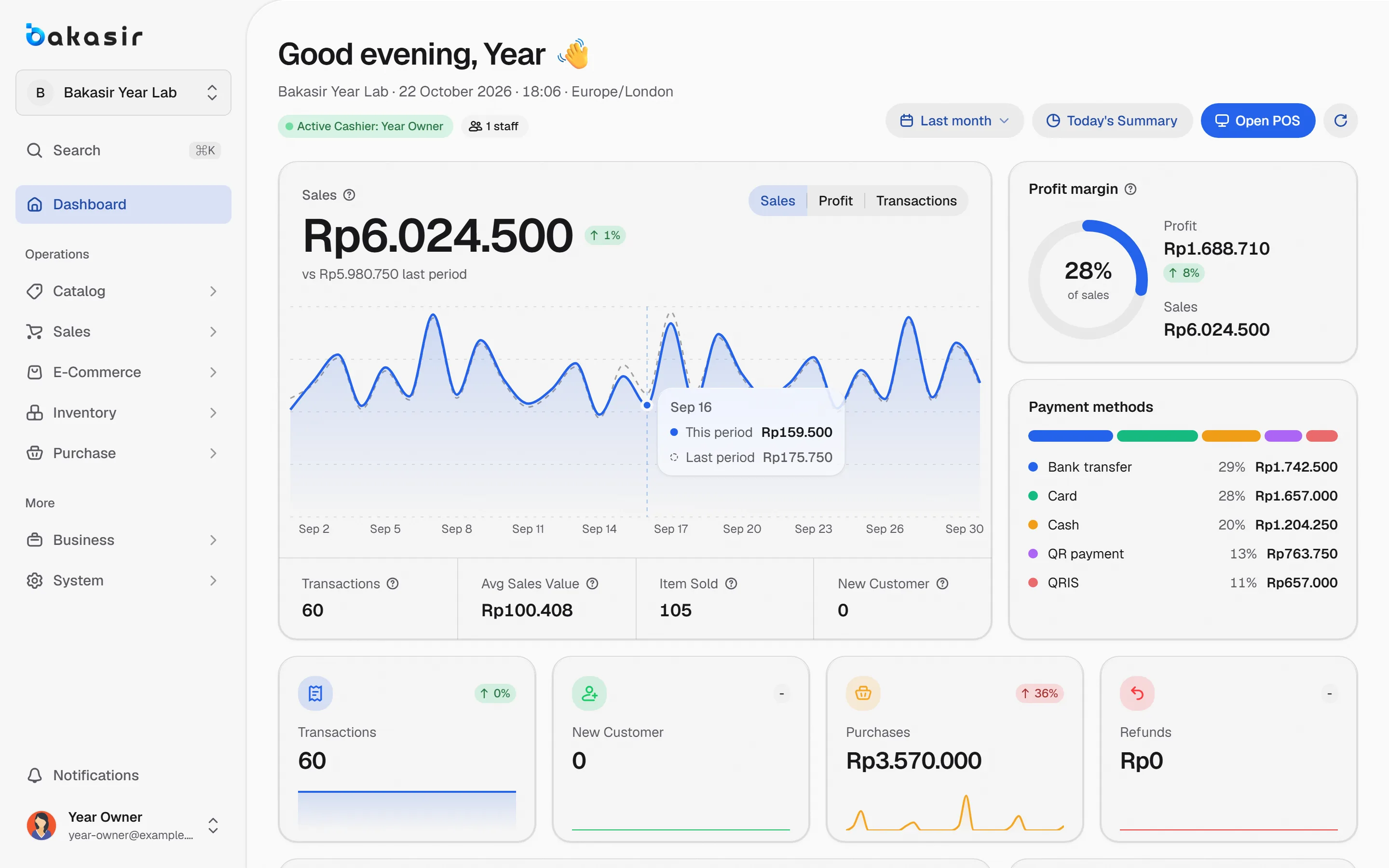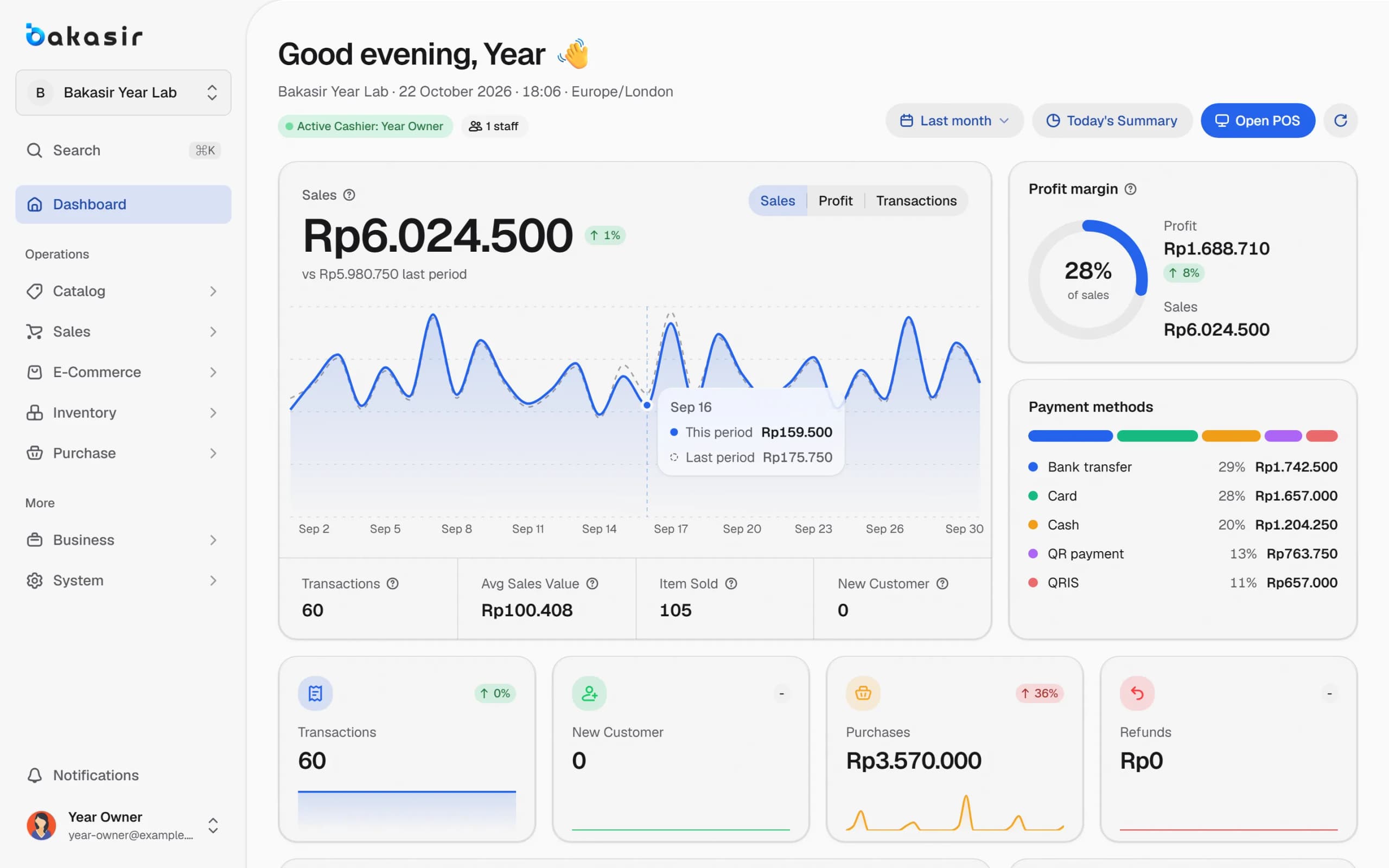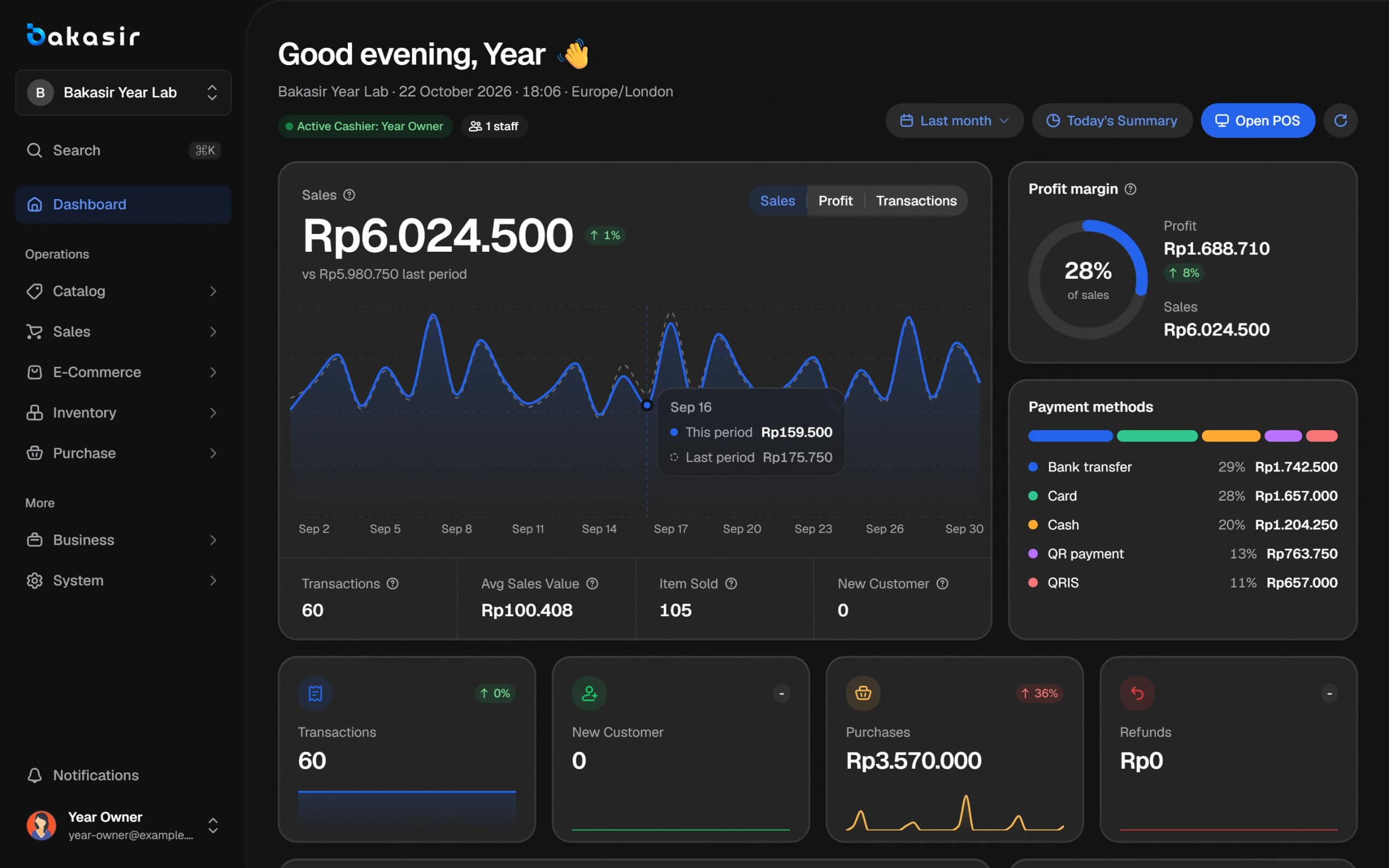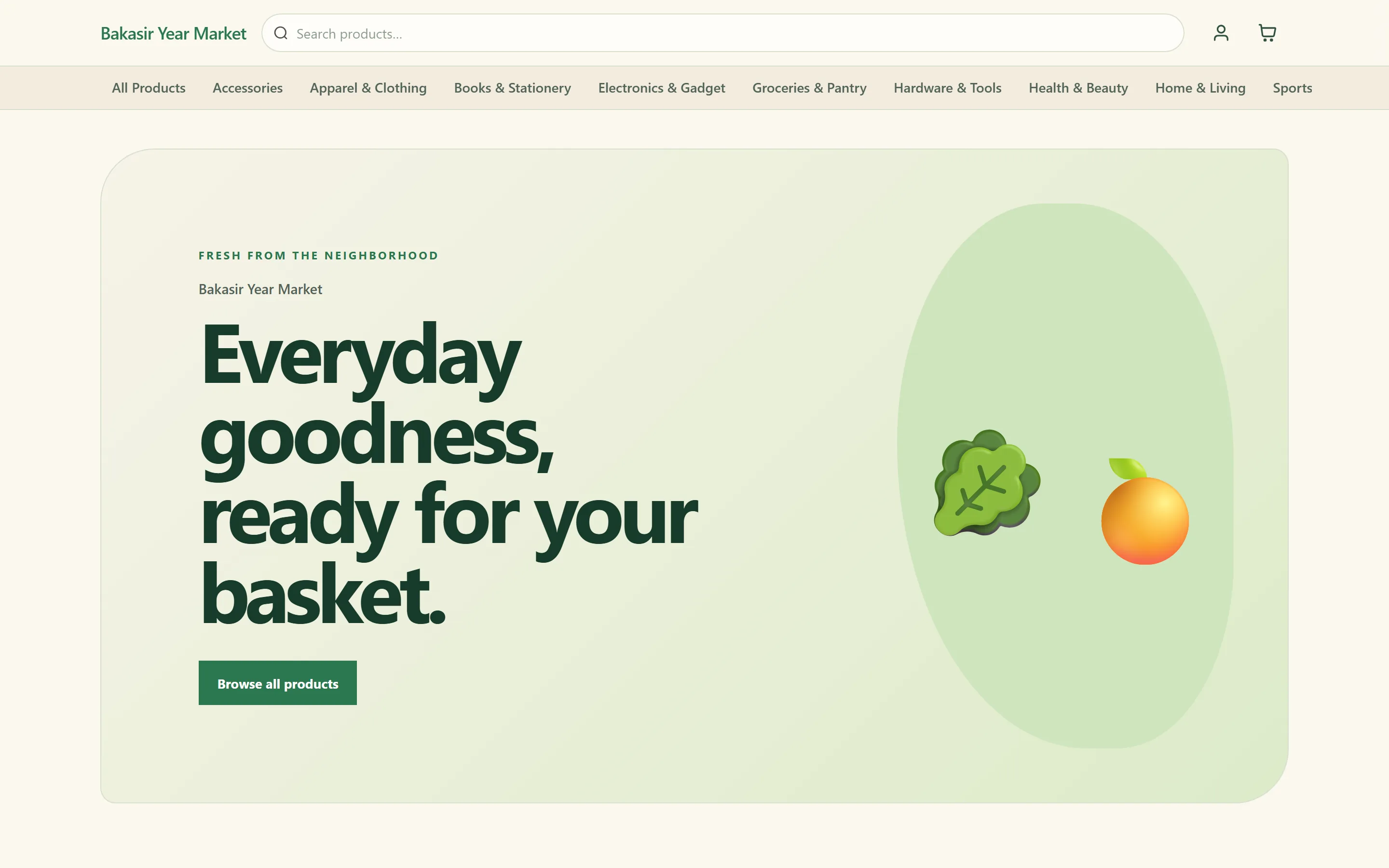
Many small businesses open an online shop and end up managing two worlds: one stock at the register and another on the website. The result is classic: an item sells out in the shop but still looks available online, and a customer is disappointed. An online store for small businesses that is connected to your POS stock fixes this with a single source of stock. This article explains how to set up an online store in Bakasir, from installing the plugin to your first order.
Why an online store for small businesses should share the register's system
- One stock. Online orders reduce the same outlet stock as the register, so the numbers never differ.
- One catalog. Products, prices, categories and photos are managed once in the Portal. Specific products can be hidden from the online store with the Hide from online store option.
- One report. Online orders appear alongside register sales in your reports. A new order counts as a transaction, but becomes revenue only once its status is completed.
- One customer list. Shoppers who sign up in the store become part of your customer list.
What you need before you start
The online store runs on the E-Commerce Suite plugin. The Tumbuh plan (Rp299,000 per outlet per month) includes it; on the Mulai plan you can install it as a paid plugin at Rp149,000 per month. Paid plugins are not available on the Free plan, but a new account gets Tumbuh free for 14 days with no card so you can try it. Prices can change, so check the pricing page. You also need products that already have a name, price, photo and stock. Only the Owner can install plugins and save store settings.
Setting up the store in eight steps
- Install the E-Commerce Suite from Plugins → Marketplace. The E-Commerce menu appears in the sidebar.
- Choose a Store URL in Settings → Business. The address is checked as you type, and your store address is a Bakasir subdomain. Changing it later breaks links you have already shared.
- Fill in the store settings in E-Commerce → Settings: store name, Default Store (the outlet whose stock the online shop sells), registration, member portal and guest checkout.
- Set stock handling: allow overselling or not, hide sold-out products, and show stock availability.
- Pick a template in Plugins → Marketplace, Templates tab, then activate it. Only one template is active at a time.
- Add collections and banners to make the front page appealing.
- Fill in the SEO tools: meta title and description, plus an image for link previews. The sitemap and structured data are generated automatically from your catalog.
- Visit the store and place a test order with every payment method you offer.
Detailed steps with screens are in the guide to setting up your online store.
Seven templates for different store types
A template changes how the storefront looks without changing your products and orders. There are seven choices:
| Template | Best for | Price (one-time) |
|---|---|---|
| Grocery | Daily needs and grocery stores | Free |
| Supermarket | Large catalogs with many promotions | Free |
| Coffee Shop | Cafes and bakeries | Rp149,000 |
| Technology | Electronics and devices | Rp149,000 |
| Barber Shop | Barbers and salons | Rp149,000 |
| Industry | Tools and technical supplies | Rp249,000 |
| Supplier Store | Wholesalers and distributors | Rp249,000 |
Paid templates are bought once and used while E-Commerce is active; the Enterprise plan includes every template. Prices can change.
Payments: three options for shoppers
- Bank Transfer. Shoppers see your bank details after ordering. You mark the order paid when the money arrives.
- Cash on Delivery (COD). You collect the money at delivery.
- Online Payment. Shown when you have entered your Midtrans Client Key and Server Key in Settings → Integrations, your currency is IDR, and your plan includes digital payments (from the Mulai plan). Paid orders are marked paid automatically.
Bank transfer and COD work without a Midtrans account. You can have unpaid orders canceled automatically after a number of hours so stock is not held up. For QRIS and digital payments at a physical register, see the QRIS at the register article.
Managing online orders
Each order lands in E-Commerce → Online Orders, and the Portal bell tells you when a new one arrives. The flow is simple:
- Check payment and click Mark Paid for transfers or COD.
- Move the status: Placed, Processing, Shipped, then Completed.
- Send a receipt by email or WhatsApp. The WhatsApp receipt opens WhatsApp with a ready message.
- Once Completed, the order counts as revenue in your reports.
Cashiers using the Desktop app can also process orders from the Online orders tile. The guide is at managing online orders.
Using your own domain
With the Domain Connect plugin (Rp29,000 per month, requires E-Commerce) you can use your own domain. In E-Commerce → Settings, on the Connect a Domain tab, type your domain, then add the ownership TXT record and the CNAME shown on screen at your DNS provider. Click Verify DNS and HTTPS; the domain goes live once ownership and HTTPS are ready. Disconnecting returns shoppers to your Bakasir address and does not delete your DNS records. Automatic Cloudflare setup is not available yet, so use manual records.
Understanding your store visitors
The Web Analytics plugin (Rp49,000 per month, requires E-Commerce) adds an E-Commerce → Analytics page to see live visitors and shopper behavior, along with a cookie consent banner for your shoppers. Treat it as an extra, not a requirement to sell.
Common mistakes to avoid
- Poor photos. Products without photos and descriptions sell poorly online.
- Inaccurate stock. Do a stock count first; read stock management for grocery stores and minimarkets.
- Skipping test orders. Try every payment method before announcing the store.
- Changing the store URL after sharing it.
Next steps
Start with five to ten hero products with good photos, open the store, and share the link with loyal customers. Expand the catalog once your first orders run smoothly.
Ready to try it yourself? The Free plan has no time limit and needs no credit card.
Keep reading
Stock Management for Grocery Stores and Minimarkets: Low Stock, Counts, and Transfers
QRIS at the Register: Static, Dynamic and How to Record Digital Payments
POS for Cafes and Coffee Shops: Modifiers, Tables, Kitchen Tickets and Orders
Frequently asked questions
Are the online store and register stock really the same?
Yes. The online store sells stock from one outlet you choose as the Default Store, and orders reduce the same stock as register sales.
Do I need a Midtrans account to sell online?
Not for bank transfer or cash on delivery. A Midtrans account is only needed if you want to offer Online Payment at checkout.
Can I switch templates without losing products and orders?
Yes. Switching templates does not change your products and orders.