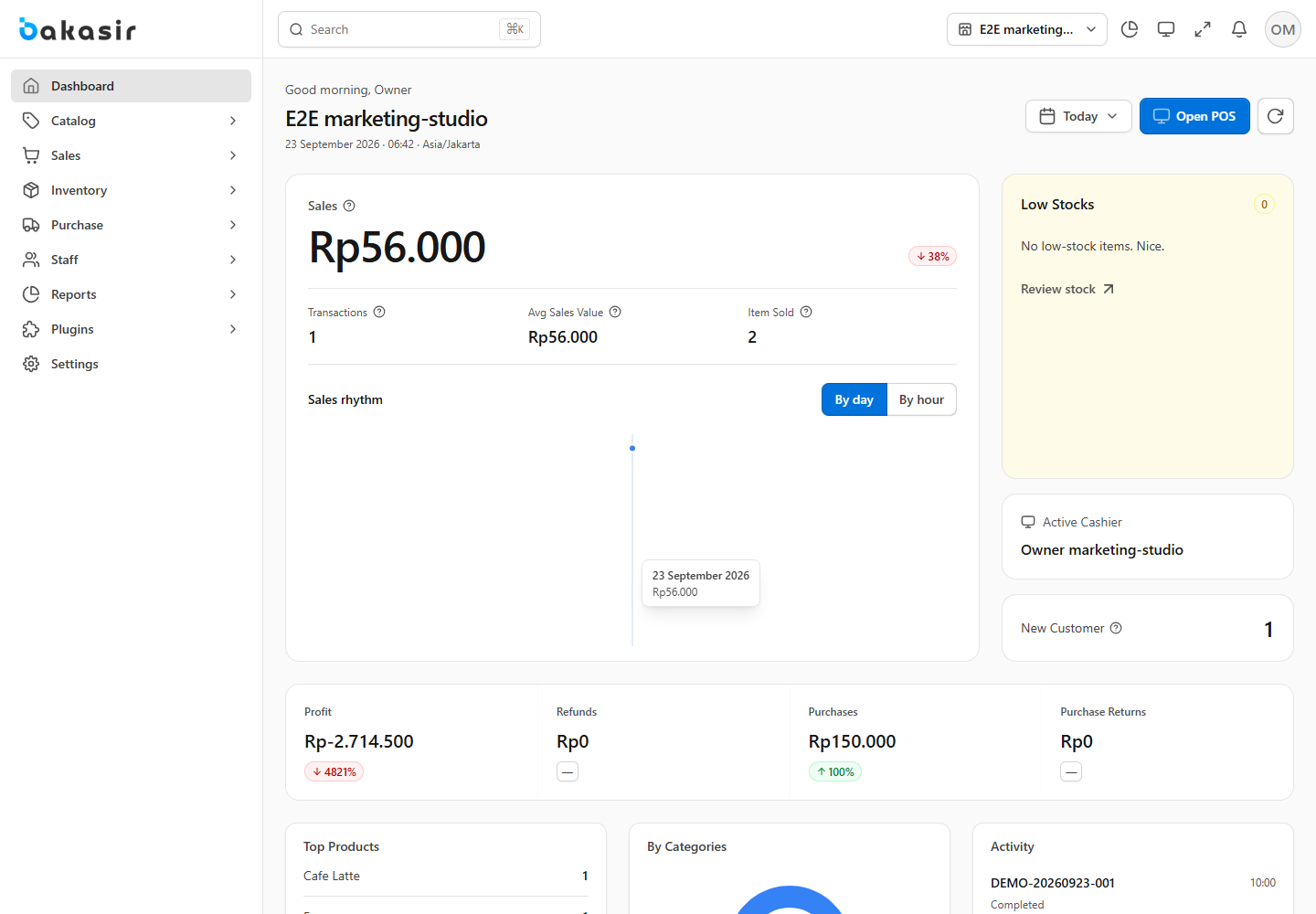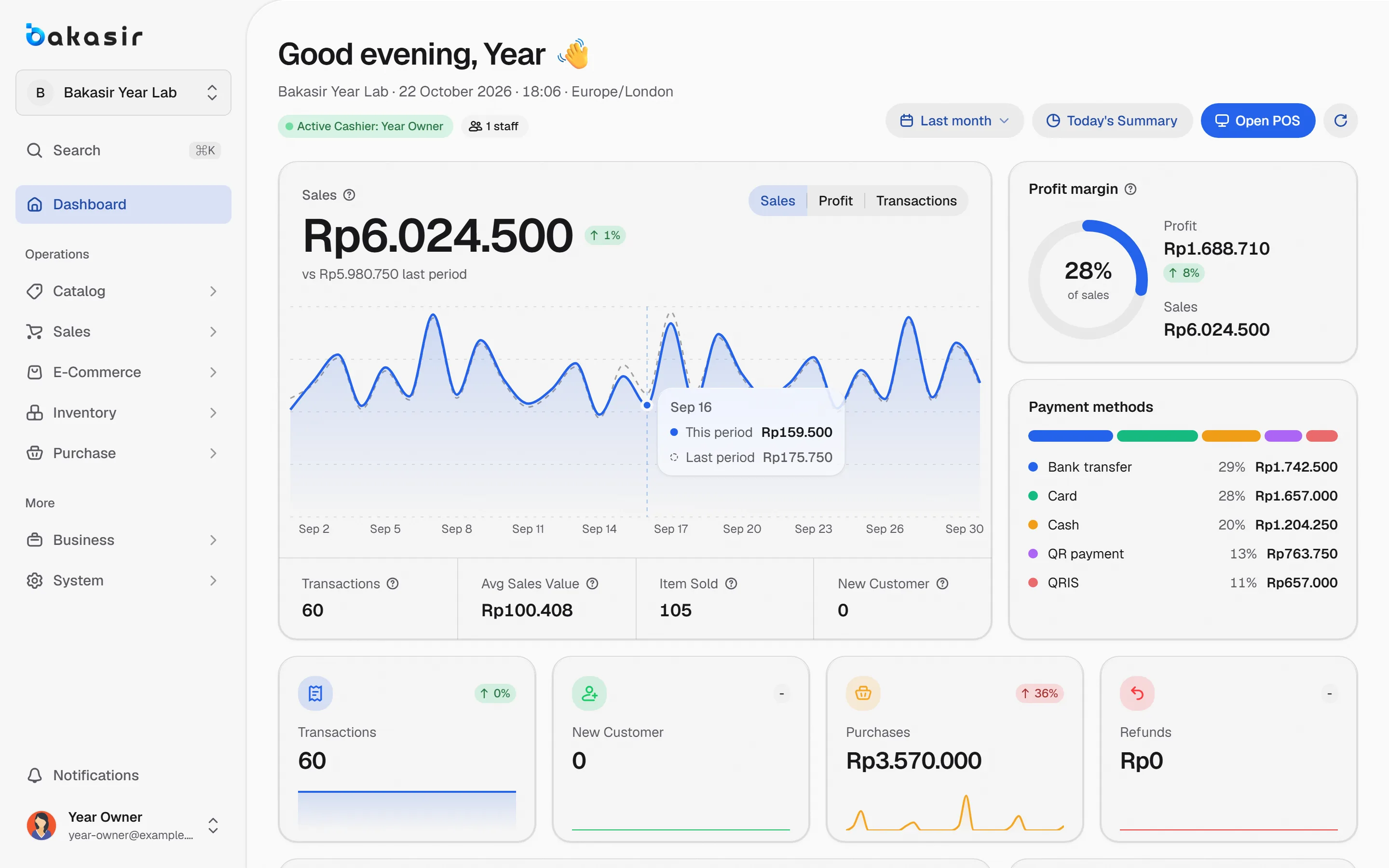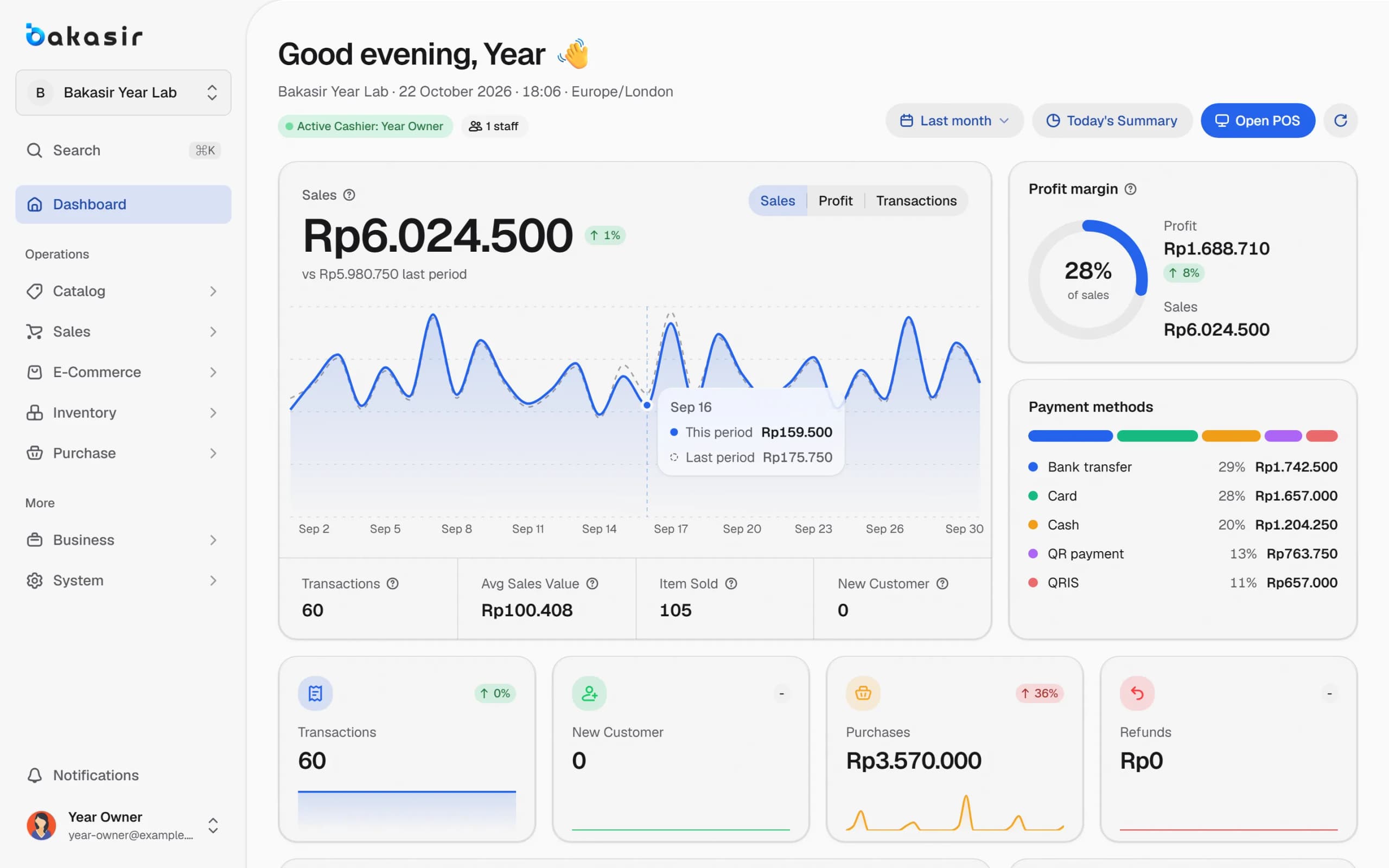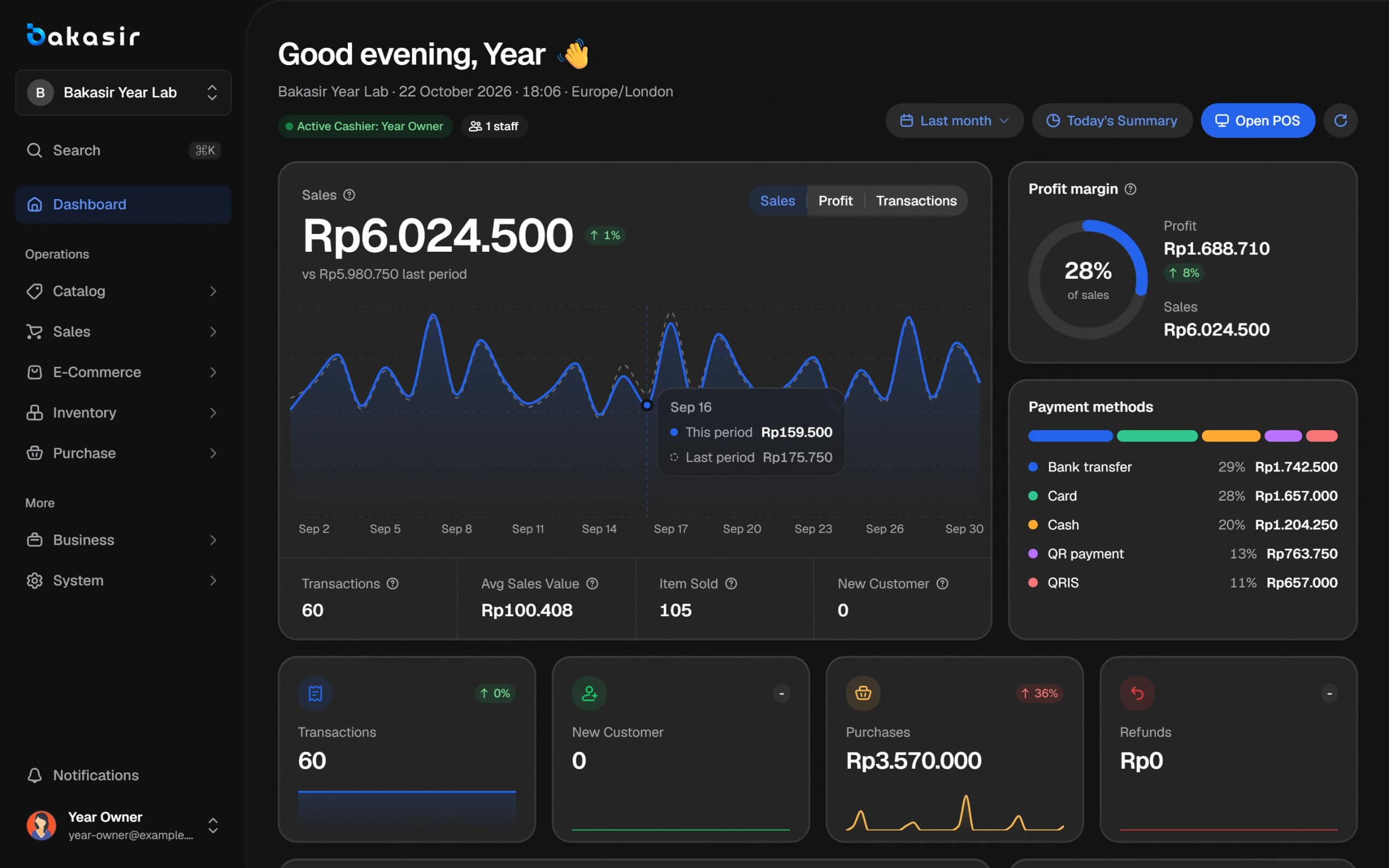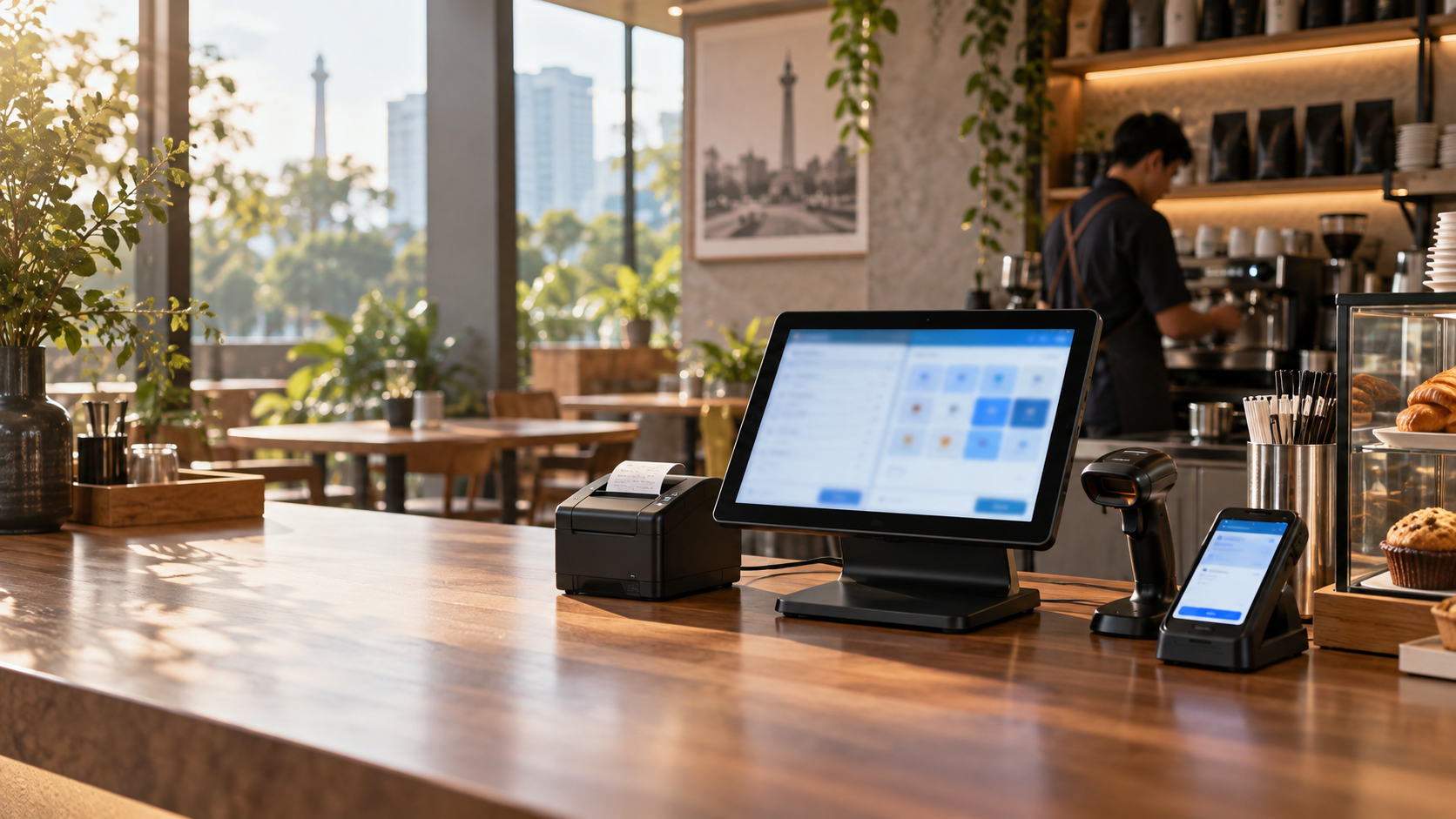
Many shops already have a Windows computer at the counter. With the Bakasir Desktop app, that computer becomes a full cashier: sell, print receipts, open the cash drawer, scan barcodes and show the total to the customer. This article explains how to set up a POS on Windows, which devices it supports, and what to check before you buy hardware.
POS on Windows: requirements and installation
Bakasir Desktop runs on Windows 10 (version 1809 or newer) and Windows 11. Download the installer from the Bakasir downloads page or from the Open your cashier window in the Portal. Installation is done once per computer:
- Run the installer; the app installs for your Windows account and opens by itself.
- The owner or a manager creates a pairing code in Settings > Business on the target terminal. The code has 8 characters, works once, and expires in 10 minutes.
- In the app, choose Checkout terminal (or Kitchen display for a kitchen screen), enter the code and activate.
- Cashiers sign in with a personal PIN set by the owner. RFID or NFC staff cards and Windows Hello are also available.
The guide is install and activate the Desktop app. The number of terminals follows your plan; Free and Mulai include 1 terminal, Tumbuh 3 terminals per outlet.
Receipt printer and cash drawer
Open the Devices tile on the Home screen. The Receipt printer section offers four connection types:
| Connection | Used for |
|---|---|
| USB / Windows | A printer already installed in Windows and visible in the printer list |
| Serial COM | A serial cable or USB-to-serial adapter |
| Network LAN | A network printer with an IP address, port 9100 |
| No printer | Turns printing off |
Choose a paper width of 58 mm or 80 mm, switch on Print automatically to print after every payment, Cut paper if the printer has an auto cutter, and Open cash drawer so the drawer opens when a payment includes cash. Press Test print for a test page and Open drawer to test the drawer.
The cash drawer plugs into the receipt printer and opens through a printer command. It opens after a cash payment, and after cash out and petty cash entries. Note that the documentation does not publish a list of certified hardware brands. Test each device you buy with Test print and Open drawer before relying on it, or make sure the seller has a return policy.
Barcode scanner and scale
A USB scanner that behaves like a keyboard needs no setup. Scan from anywhere on the POS screen, in price check or in label search. A serial scanner has its port chosen under Barcode scanner. For goods sold by weight, choose the scale's COM port under Scale, then press Read from scale on the product line. If no reading has arrived yet, the app says so.
Customer display
Switch on Customer display and choose a second monitor. The customer screen shows the cart and total, the QRIS code during a QRIS payment, a thank-you message with the change after payment, and an image slideshow when the cart is empty. With only one monitor, the display opens as a normal window. The slideshow images, seconds per image and thank-you message are set in Settings > POS > Customer display in the Portal. A two-line VFD pole display can be connected through a COM port to show the last item and the total.
Kitchen printer and label printer
For restaurants, choose a Kitchen printer so kitchen tickets print when an order is sent, or use the same printer as the receipt. The Label printer supports ZPL, TSPL or ESC/POS with adjustable label width and height, suitable for brands such as Zebra, TSC and Xprinter. Labels are printed from the label printing tile.
Diagnostics and offline mode
At the bottom of Devices, Run tests checks the server connection (in milliseconds) and the offline queue. Open log folder opens the log files that support may ask for. If the internet drops, selling continues from the saved catalog, each sale gets its own receipt number, and the sales join a queue that is sent in order when the connection returns. The N queued label beside the search box counts waiting sales. See also offline POS.
Shift and reports on Desktop
The Cash and reports tile holds opening the register, cash in and cash out, petty cash, the X report and the Z report, which prints automatically. The flow is covered in daily register closing. The app also has a kiosk mode, screen lock with Ctrl+L, and automatic updates you can check from Settings.
Checklist before buying hardware
- Make sure the computer runs Windows 10 version 1809 or newer.
- Buy a printer that can be installed in Windows or connected over LAN or serial.
- Confirm the cash drawer connects to the printer and the Open drawer test works.
- Try the scanner with one product and confirm the scan lands in the search box.
- Set the paper width to match the roll and test your receipt design.
Next steps
Install the app on one computer, run Test print, then make three test sales. Download it from the downloads page.
Ready to try it yourself? The Free plan has no time limit and needs no credit card.
Keep reading
Offline POS: How to Keep Selling When the Internet Goes Down
How to Design a Tidy POS Receipt: Logo, Tax, Online Receipt QR and 58/80 mm Paper Size
Daily Register Closing: How to Check the Cash Difference, X and Z Reports and Cash Handover
Frequently asked questions
Can Bakasir Desktop work without internet?
It can sell. After sign-in, sales run from the saved catalog and are sent in order when the connection returns. Installation, pairing and the first sign-in still need internet.
Which receipt printers can I use?
Printers installed in Windows, connected over a serial cable, or on the LAN at port 9100, with 58 or 80 mm paper. Test each device with Test print before relying on it.
Does the customer display need a second monitor?
No. With one monitor, the customer view opens as a normal window. A second monitor is only needed if you want it full screen on the customer side.