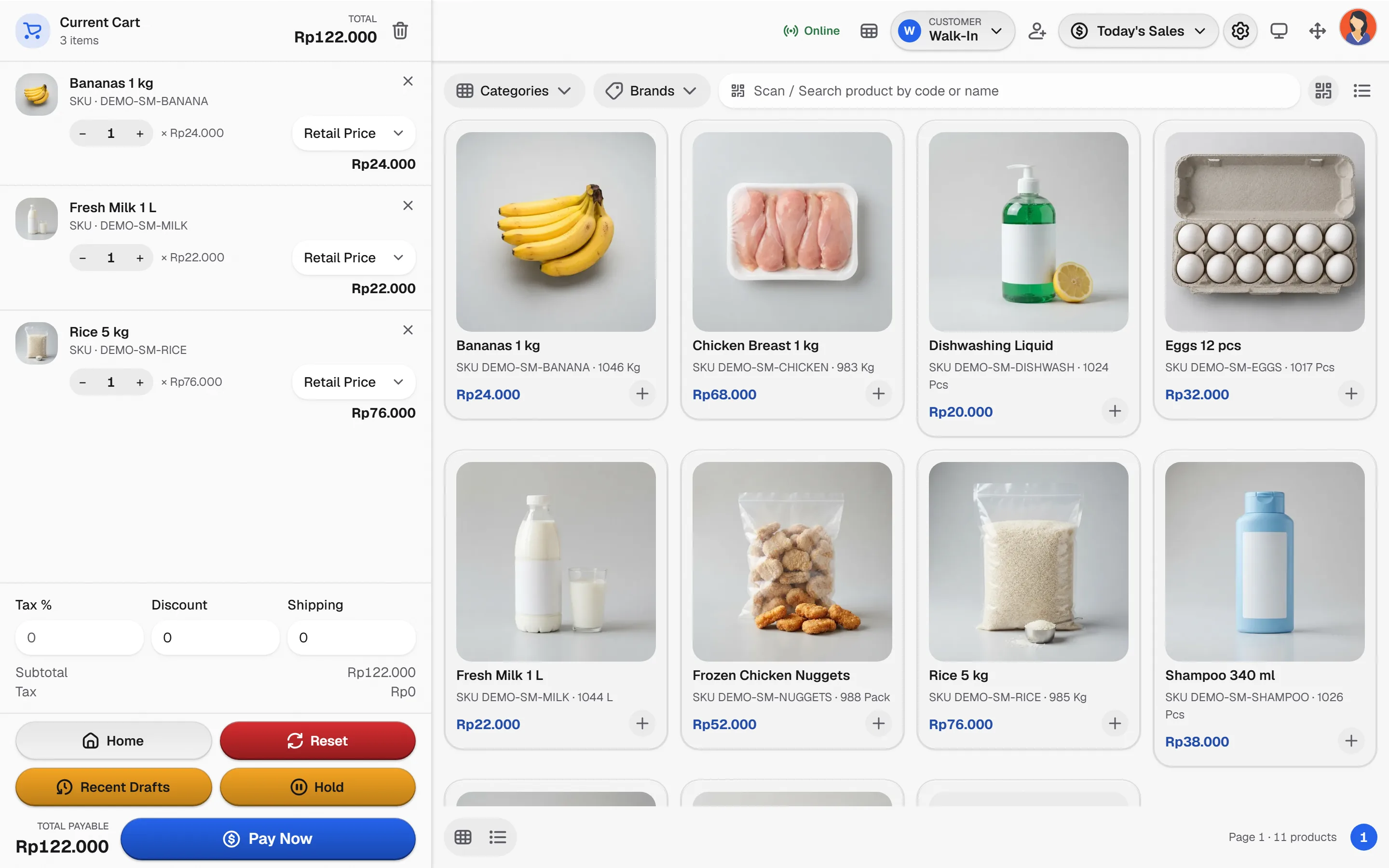
The receipt is the document your customers see most often. A tidy receipt shows your business name, clear price lines, correct tax, and stays short enough for a small thermal roll. This article explains how to design a tidy POS receipt in Bakasir, from the logo to a 58 or 80 mm paper size.
Start with your business details
The receipt uses what you enter in Settings > Business: business name, legal name, phone, email, address and Tax Registration No / NPWP. Check these first, because a small error such as an old phone number prints on every receipt. The logo is uploaded in Settings > Branding & White Label (Logo Light, Logo Dark and Logo Mini, PNG, JPEG or WebP up to 5 MB).
A tidy POS receipt: paper size and design
Open Settings > Receipt & Invoice. Under Paper & Layout you choose:
- POS Paper Size: 56 mm, 76 mm or 80 mm in the Portal. In the printer settings of the Desktop app, the paper width is set to 58 mm or 80 mm to match your printer.
- Receipt Design: several designs that lay out the receipt differently. The live preview on the right shows the result before anything is printed.
Match the size to the paper roll in your printer. A 58 mm printer saves paper but has narrower columns, so long product names will be cut or wrap to the next line.
Set what the receipt shows: header, body, footer
The Set Receipt Display button opens three tabs. Switch on only what helps the customer.
| Part | Options available |
|---|---|
| Header | Logo, business name, address, city, country, email, phone, receipt number, transaction time, order sequence number, cashier name, customer, order type |
| Body | Unit price and product details |
| Footer | Notes, custom footer text, online receipt QR code, electronic receipt barcode |
A practical tip: for 58 mm paper, switch off what you do not need, such as country and email, so the receipt stays short. Use the custom footer for a thank-you line, opening hours or your exchange policy.
Tax on the receipt
Tax is set once in Settings > System under Tax: switch on Collect Tax, choose Inclusive (prices already contain tax) or Exclusive (tax is added), then enter a name and a rate. That tax name is what prints on the receipt. If you use a service charge and rounding, both appear as their own lines. For the VAT and invoice context, read small business tax and your POS. The tax settings are general in-app information, not tax advice; check your obligations with a tax adviser.
The online receipt QR
The Online Receipt QR Code option prints a QR code at the bottom of the receipt. Customers scan it to open a copy of the receipt on their phone, with the receipt number, the item list, the total and the payment. That page is not indexed by search engines. It helps when a customer loses a faded thermal receipt or wants to keep proof without taking a photo. Try it once with a test sale to see how it looks before you open the shop.
Document numbering
Under Document Numbering you set the prefix for receipts, invoices, stock adjustments, transfers, counts, purchases and expenses. POS receipt numbers include the outlet code and the terminal code, for example RCP-CODE-TERMINAL-000001, so two cashiers never share a number. The outlet code is 2 to 6 letters or digits in Settings > Business, and changing it only affects new receipts.
Printing and sending receipts
In the Desktop app, open Devices, choose how the printer connects (USB/Windows, Serial COM or network LAN), pick the paper width, and switch on Print automatically if you want a receipt after every payment. Cut paper is for printers with an auto cutter, and Test print prints a test page. Desktop follows the receipt layout from the Portal, including logo, header, footer and QR. The guide is printer, drawer and devices. From Sales > Transactions, a receipt can also be reprinted or sent by email or WhatsApp.
Invoices on A4, Letter, Legal or F4 paper are set separately in the invoice section of the same page, with the Standard, Modern or Minimal designs.
A tidy receipt checklist
- Business details and NPWP are correct.
- A simple, high contrast logo so it prints clearly on thermal paper.
- Paper size matches the roll in the printer.
- Tax and tax name are right.
- A short footer, two or three lines at most.
- Print one test sale before you open.
A plan note: receipts on the Free plan carry a Bakasir mark; the mark is removed on paid plans. See what the Free plan includes.
Next steps
Open your receipt settings now, change one thing and watch the live preview. Getting started guide: set up your business.
Ready to try it yourself? The Free plan has no time limit and needs no credit card.
Keep reading
Small Business Tax and Your POS: VAT Settings, Receipts and Invoice Export
QRIS at the Register: Static, Dynamic and How to Record Digital Payments
Free POS App: What You Really Get, and Where the Limits Are
Frequently asked questions
Which receipt paper size should I choose, 58 or 80 mm?
Choose according to the paper roll in your printer. 58 mm is compact and cheaper to run, while 80 mm leaves wider columns for long product names.
Is a logo required on the receipt?
No. The logo is one header option that you can switch on or off under Set Receipt Display.
Can customers receive a receipt without paper?
Yes, through the online receipt QR code they scan, or you can send the receipt from the transactions list by email or WhatsApp when the customer contact is saved.