Opening a second branch usually changes two things at once: stock is split across two places, and you can no longer see everything with your own eyes. A good multi-outlet POS keeps each branch's stock separate while still giving you one combined view. This article explains how Bakasir handles stock, prices, staff and reports for several branches.
Multi-outlet POS: how it works in Bakasir
One business account can have several outlets. Each outlet is billed as one store and has its own stock, registers, staff access and opening hours. Customers and the product catalog are shared between outlets. To add a branch, open Settings > Business, find Outlets, type a name in New Outlet Name and tap Add Outlet.
Each outlet has a store code of 2 to 6 letters or digits. It appears in the receipt number (RCP-CODE-TERMINAL-000001), so you can tell which branch every receipt came from.
Separate stock per outlet
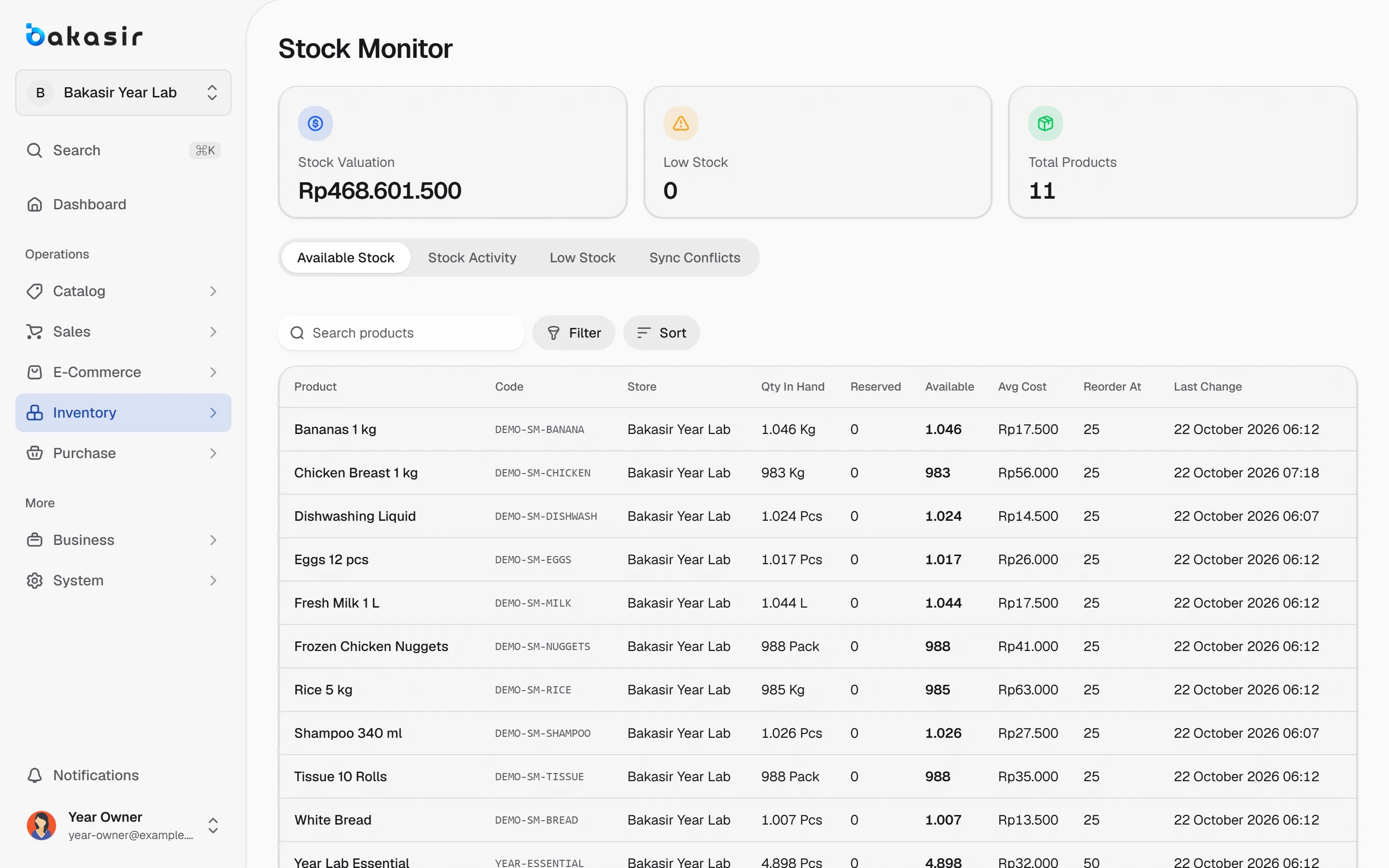
Stock is kept per outlet. You switch outlet with the store switcher in the left menu of the Portal, and the numbers in Inventory > Stock Monitor follow the selected outlet. A sale at branch A only reduces branch A's stock. A purchase has a Receiving Store field that decides which branch receives the goods.
To move goods between branches, use Inventory > Stock Transfer:
- Tap New Transfer and choose different From Store and To Store values.
- Enter the date, expected arrival, goods and quantities.
- From the Actions menu, choose Dispatch when the goods leave and Receive when they arrive.
A transfer moves from Draft to Sent (in transit) to Received, so a gap in transit is easy to see. Stock counts and adjustments also choose a store. More on stock in stock management for grocery stores and minimarkets.
Price and availability per outlet
The product form has an Availability & price per store section. There you choose which outlets sell the product and enter a special price per store, including a store wholesale price. If a price field is left empty, the product uses the base price. This suits a tourist-area branch that charges differently from a residential one, or a menu item that is only sold at one location.
Staff and access per outlet
When you add staff in Staff > Staff List, you choose Store Access, the outlet where the person works. There are still three roles: Owner, Manager and Staff. The approval rules for discounts and refunds apply at every branch. Cashiers see only their own sales; owners and managers see all. Opening and closing hours are set per outlet under Opening & Closing Hours, with reminders and automatic register closing.
Each terminal (a Windows computer or an Android device) is paired with one outlet using a one-time pairing code. Staff guide: managing store staff.
Combined and per-branch reports
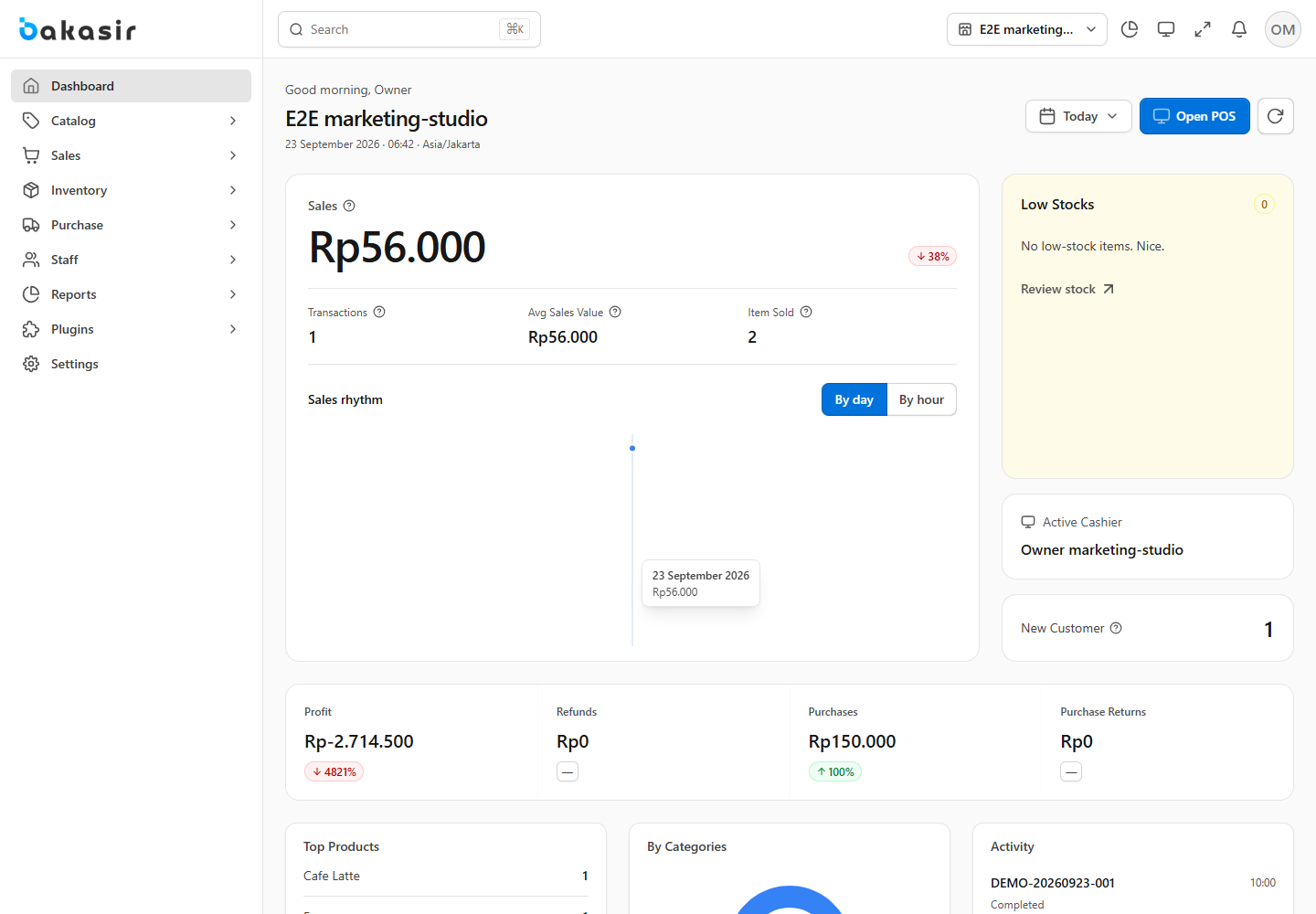
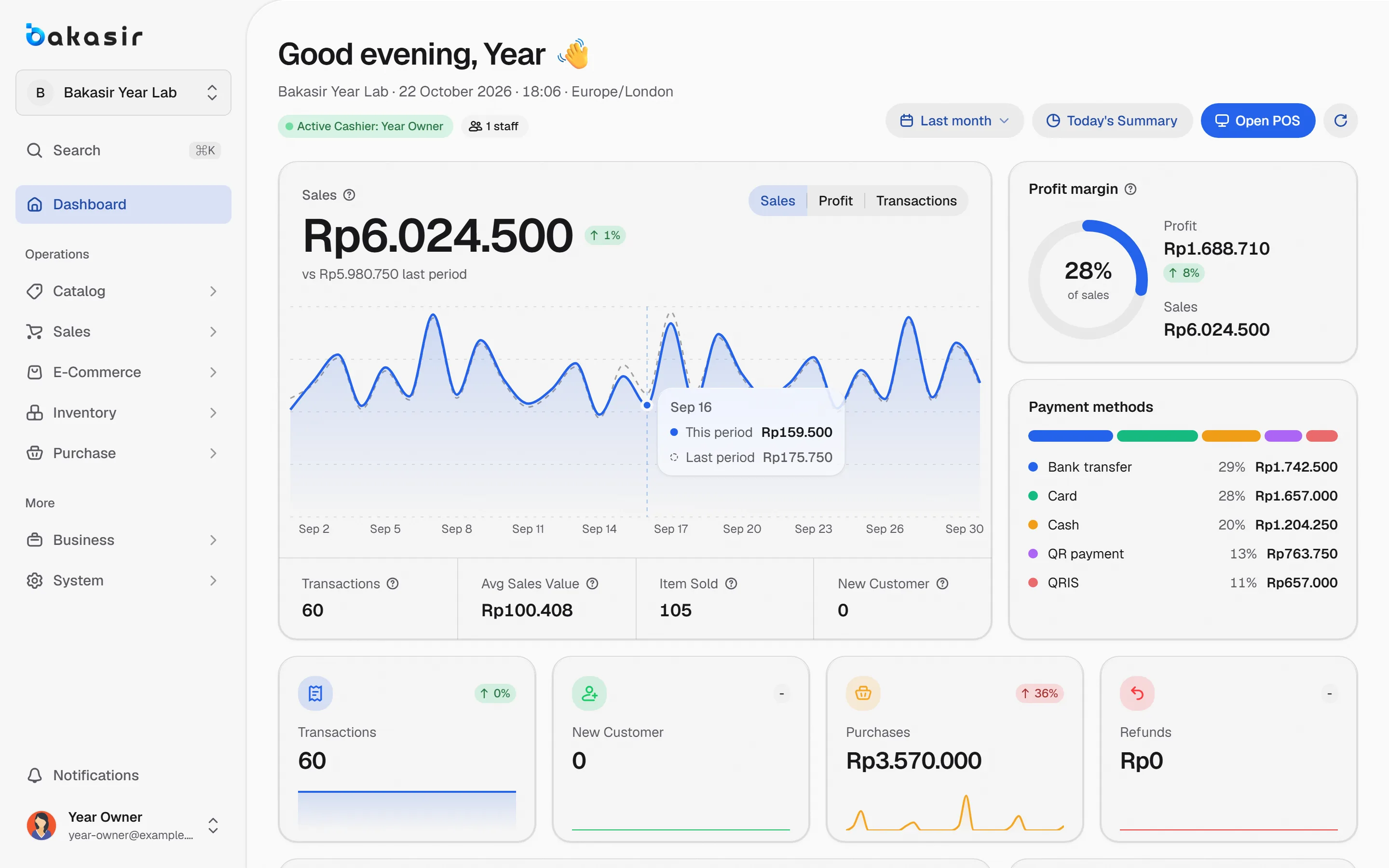
Owners who want to know which branch earns the most can use the store filter at the top of the reports. The default is All stores, the combination of every outlet, and you can narrow it to a single outlet to compare. The dashboard cards, profit and loss, product analytics and inventory reports all work this way. The Cash Register report lists every register session per outlet with its cash difference. Pair it with the habits in 10 numbers from the daily sales report.
Cost and plan limits
The Free plan is limited to 1 outlet. On paid plans, pricing is per outlet per month. According to the published pricing data at the time of writing, the second to fourth outlets get a 20 percent discount and the fifth outlet onward 30 percent, while Enterprise starts at five outlets through the sales team. An extra terminal is Rp49,000 a month and an extra staff seat Rp15,000 a month. Figures can change, so check the pricing page and confirm how the discount is applied before subscribing.
Habits that help
- Use consistent outlet names, such as the street or city.
- Run the stock count at every branch at the same time each month.
- Record stock moves through the transfer feature, not manual adjustments, so the trail is clear.
- Review each branch's cash difference in the register report every day.
- Open a new branch with clean data: products, prices and opening stock.
The order for opening a second branch
- Add the outlet in Settings > Business and fill in the store code.
- Decide which products the new branch sells in the availability and price per store section.
- Add a terminal for that branch and pair the device with a pairing code.
- Add staff with the right store access and set their PINs.
- Fill opening stock through a purchase, a stock transfer from the old branch, or opening stock.
- Set opening and closing hours, then test one sale.
Next steps
Add one test outlet, make one stock transfer, and compare the All stores report with a single-branch report. Full settings: Settings overview and control your stock.
Ready to try it yourself? The Free plan has no time limit and needs no credit card.
Keep reading
Stock Management for Grocery Stores and Minimarkets: Low Stock, Counts, and Transfers
Daily Sales Report: 10 Numbers Every Business Owner Should Check
Managing Store Staff: Attendance, Shifts and Simple Payroll
Frequently asked questions
Is stock separate for each branch?
Yes. Stock is kept per outlet, and sales, purchases, counts and transfers work on the selected outlet.
Can one product have a different price at each branch?
Yes. In the Availability & price per store section of the product form you enter a special price per store. If it is empty, the product uses the base price.
Can I see the reports of all branches at once?
Yes. The store filter on reports defaults to All stores, and it can be narrowed to one outlet for comparison.