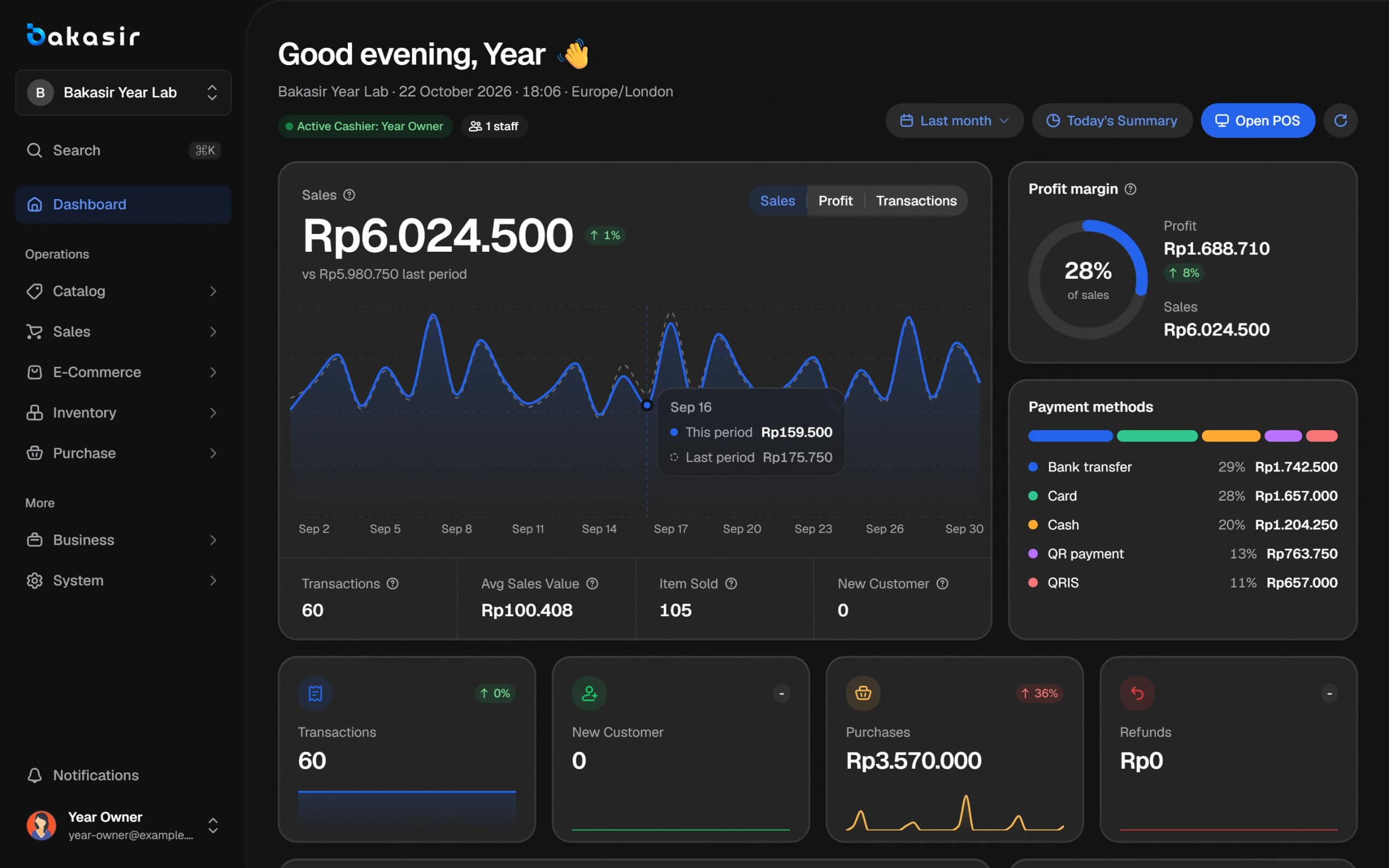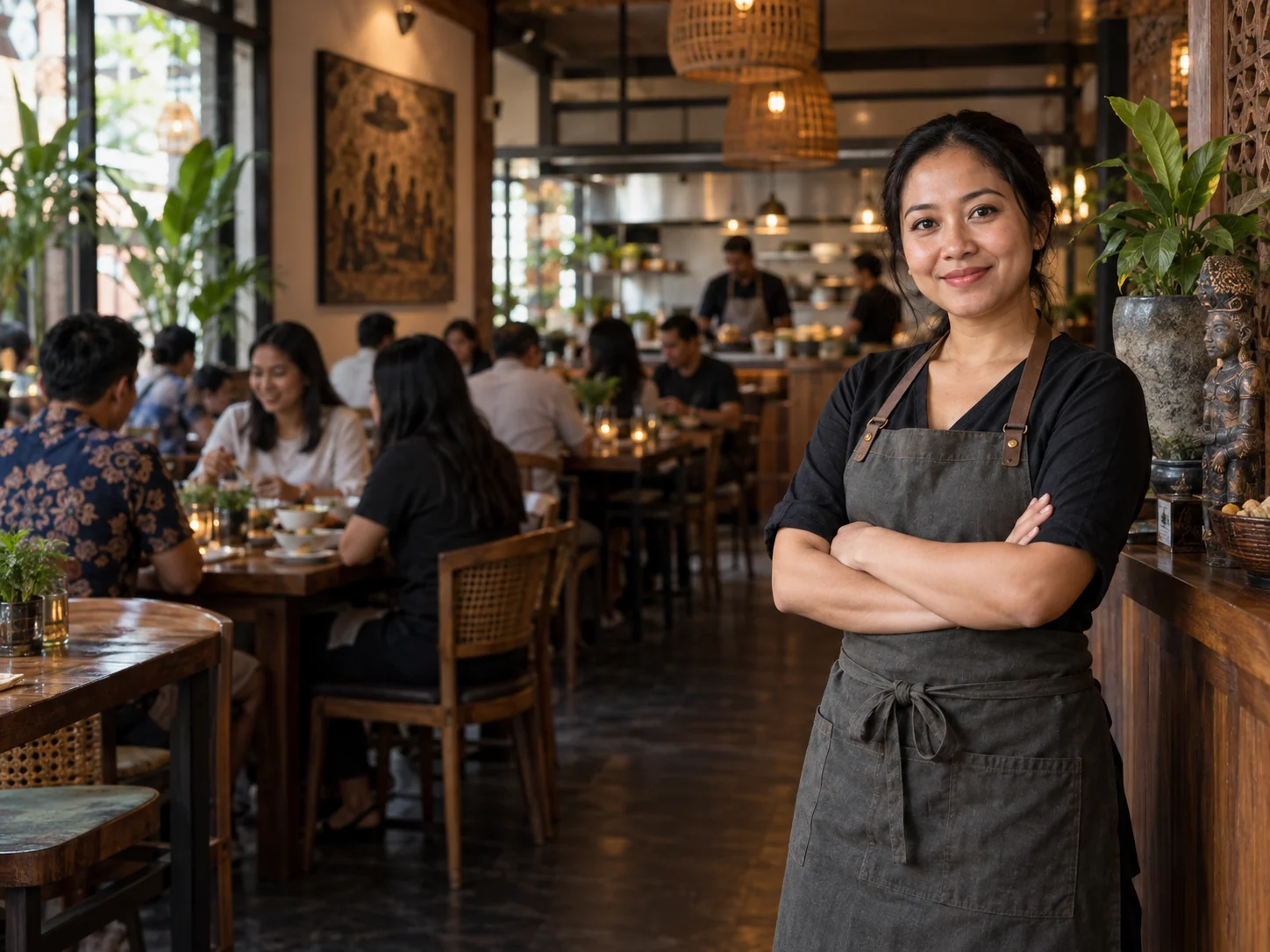
A POS app for restaurants has different demands from a retail shop: guests sit at tables, orders arrive in rounds, the kitchen needs tickets, and a bill is sometimes paid by several people. This article explains how Bakasir handles tables, split bills, service charge and the kitchen, including what is not there yet so nothing surprises you in service.
POS app for restaurants: what to switch on first
The Restaurant style is not on by default in every account. The owner opens Settings > POS and switches on two settings:
- Enable dine-in / take away, which adds the Dine-In, Take Away and Delivery choices and the Send to Kitchen button.
- Enable table management, which adds the floor plan.
Table management and the kitchen display are features of the Tumbuh plan and above, so check the pricing page before planning your restaurant flow.
Tables: from seating to payment
The flow is short and follows the tables and kitchen guide:
- On the floor plan, tap Add table and enter the table name, floor and number of seats.
- Tap a free table. It becomes Occupied and the menu opens.
- Pick items, add modifiers such as size or add-ons, and write a note for the kitchen.
- Tap Send to Kitchen. Later items are marked New, so the kitchen never gets the same item twice.
- Tap Pay. After payment the table returns to Available.
A table is Available, Occupied, Reserved or Billed. Move edits the name or floor, and Merge puts the guests of one table onto another and adds up the seats. One thing to remember: the items of a table order held in Web POS are saved in the browser where you opened it, so finish a table on the same computer.
Split bill: what actually gets split
When Enable split bill is on, the payment window offers Split Pay. You pick a method, enter an amount and add payment parts until Still due reaches zero. For example, three guests: one pays cash, one pays QRIS, one pays by transfer.
It is worth being clear: split bill in Bakasir divides the payment amount. It does not split the items into separate bills per guest. If guests want separate bills, the cashier should create separate orders from the start. If the tenders add up to more than the total, the extra comes back as change from the cash drawer.
Service charge and rounding
Restaurants in Indonesia commonly add a service charge. Settings > POS has a section for service charge and cashier rounding:
| Setting | What it does |
|---|---|
| Service charge (%) | A percentage from 0 to 100 of the bill after discounts, shown as its own line on the receipt |
| Applies to | Dine-in, take-away, delivery or all order types |
| Charge tax on the service | Whether tax is also calculated on the service charge |
| Name on the receipt | For example Service 5% |
| Cashier rounding | A multiple of 100, 500 or 1,000, to the nearest, always up or always down |
| Rounding scope | Cash only or all payment methods |
The server calculates these rules the same way for Web, Desktop and Android, so the total on the cashier screen matches the report. A cashier who waives the service charge on one sale needs the same approval as a manual discount. For tax, see also small business tax and your POS.
The kitchen: tickets, printer and screen
Web POS creates a kitchen ticket when you tap Send to Kitchen, but it has no kitchen screen of its own. The kitchen display and printing to a kitchen printer are in the Windows Desktop app. That means your kitchen needs a Windows computer paired as a Kitchen display, or a separate kitchen printer set up under Devices. See printer, drawer and devices on Desktop.
Payments and speed at the rush hour
The register accepts cash, card, bank transfer, QR, e-wallet and cheque. Dynamic QRIS through your own Midtrans account is available from the Mulai plan; without it, QRIS is recorded as a method and the cashier must confirm the money arrived before completing the payment. If the internet is unreliable, sales can still be recorded offline, see offline POS.
What is not there
So you know before subscribing: Bakasir does not have customer table reservations, a self-service QR order menu at the table, or automatic per-item bill splitting. Online customers can order through the online store (a separate plugin), but that is a different flow from table orders.
Next steps
Try the flow with 5 tables and 10 menu items for one afternoon. The Bakasir for restaurants page summarizes the use case, and for cafes read POS for cafes. Guide: create an account.
Ready to try it yourself? The Free plan has no time limit and needs no credit card.
Keep reading
POS for Cafes and Coffee Shops: Modifiers, Tables, Kitchen Tickets and Orders
Offline POS: How to Keep Selling When the Internet Goes Down
QRIS at the Register: Static, Dynamic and How to Record Digital Payments
Frequently asked questions
Does Bakasir support per-item split bills?
Split bill divides the payment amount between methods or guests. It does not create separate bills per item. For separate bills, create separate orders from the start.
Can service charge be set per order type?
Yes. You choose whether service charge applies to dine-in, take-away, delivery or all order types, and whether tax is charged on it.
Does the kitchen need special equipment?
Kitchen tickets are created from Web POS, but the kitchen screen and kitchen printer are in the Windows Desktop app. Set up a Windows computer for the kitchen if you want a screen or printed tickets.